OSM
Menu

Your own cloud, on your own server.

OSM turns a PC or an arm64 computer into a private cloud for your home or small office: storage with RAID, shared folders, one-click apps, virtual machines and backups, managed from a desktop in your web browser.

Runs on a 64-bit PC, or an arm64 computer with UEFI, with 4 GB of memory or more.

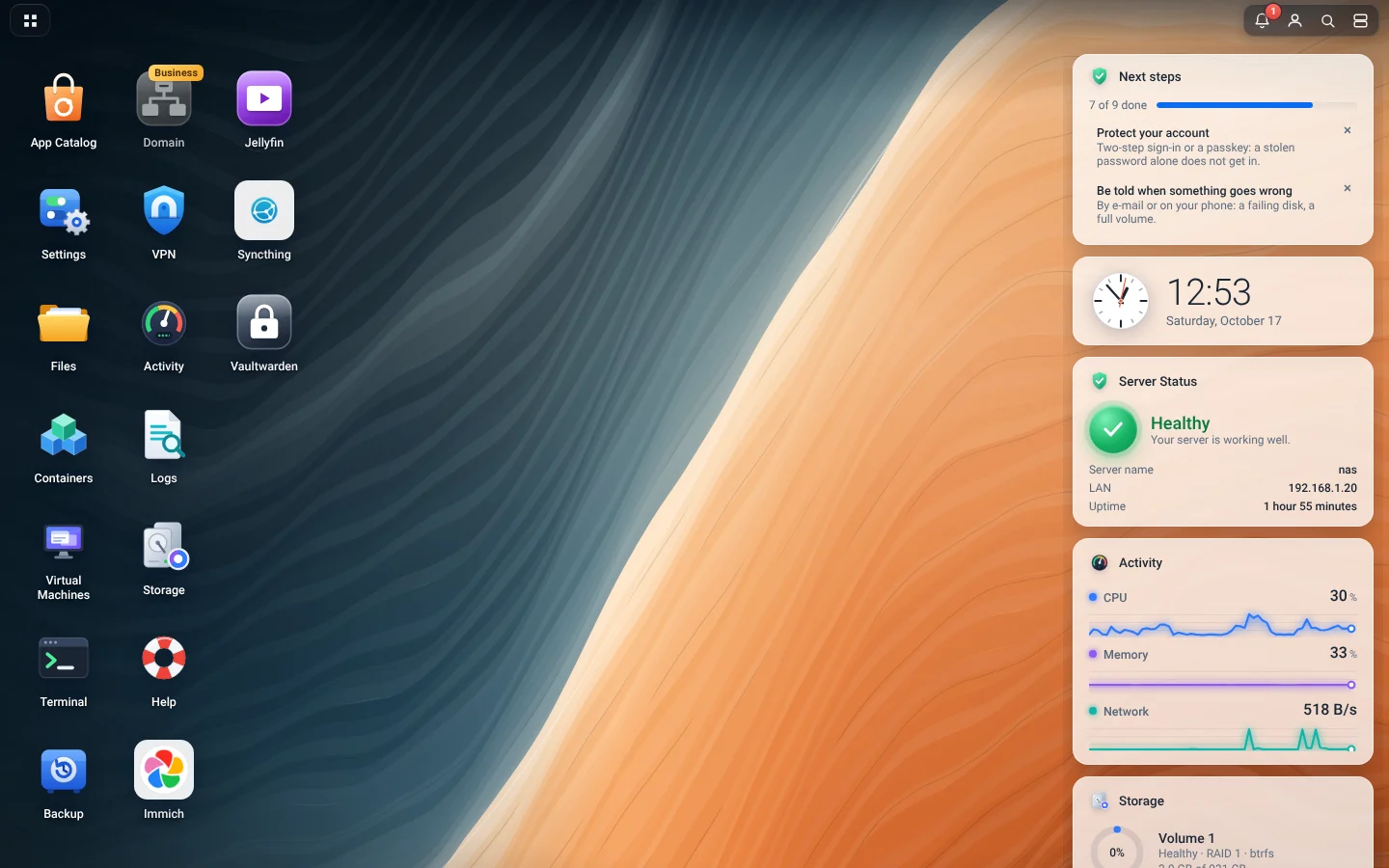
OSM's desktop in a web browser: app icons on the left, and on the right the server's status, its activity and the next steps to set it up.
What OSM does

Everything a server at home or in the office does

One system, installed from a USB stick in about 20 minutes, and run from your browser. No command line needed.

Storage

RAID 1, 5, 6 and 10, Flexible RAID for disks of different sizes, and snapshots that ransomware cannot delete.

Shared Folders

For Windows, macOS and Linux, with permissions for each account and group, a recycle bin and earlier versions.

App Catalog

Photos, documents, passwords, media and more, installed with one click and kept up to date by OSM.

Virtual Machines

Windows or Linux beside your apps, with snapshots and their screen in your browser.

Backup

To a USB drive, another server or cloud storage, encrypted and on a schedule, and back with a few clicks.

Security

Two-step sign-in and passkeys, a firewall, signed updates, and a security check that says what to fix.

Storage

Disks that look after themselves

  • Every disk's health checked, and a failed one replaced by a hot spare by itself.
  • Damaged blocks repaired from the other disks of the RAID as they are read.
  • Add a disk, or a bigger one, and the volume grows while you use it.
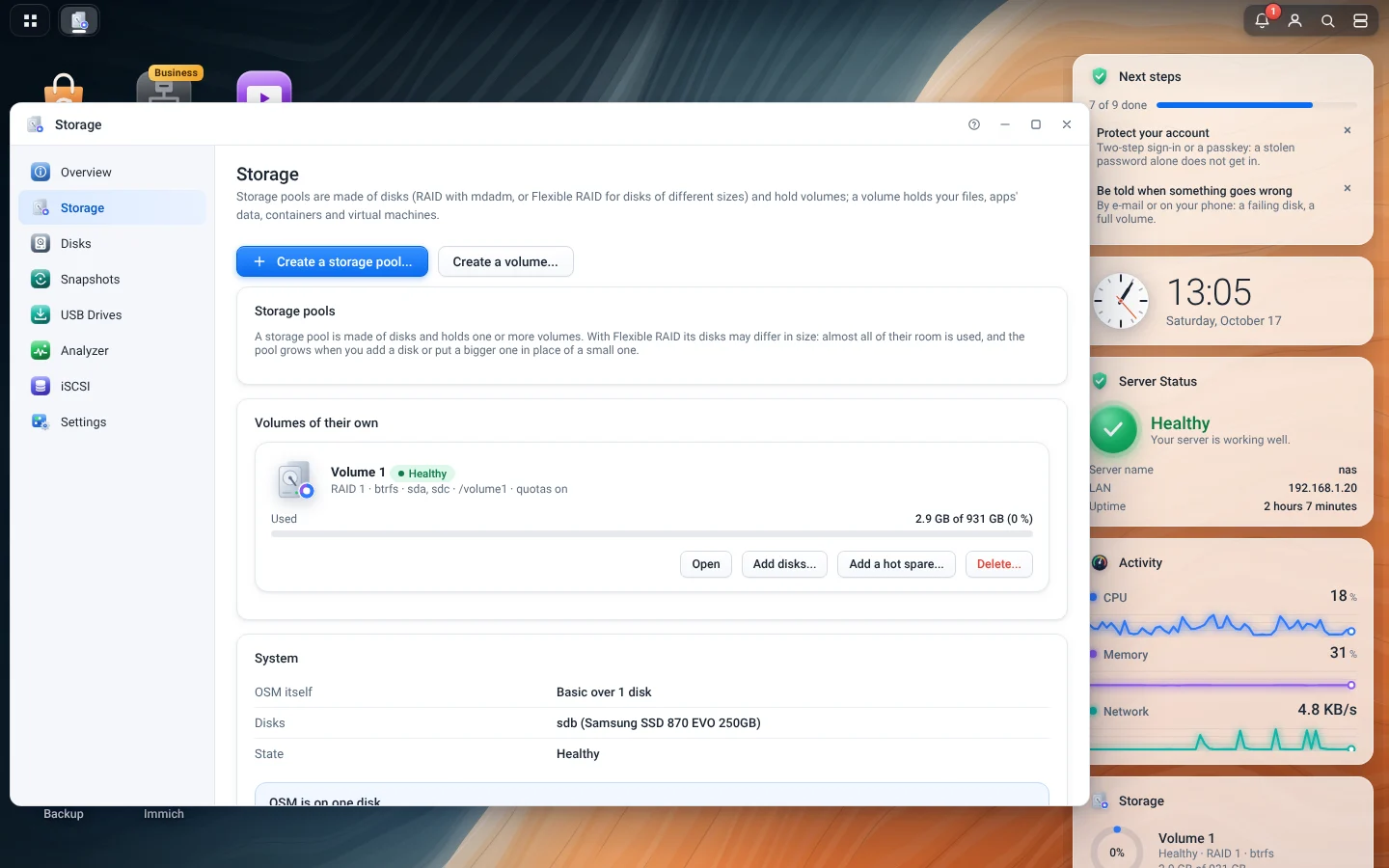
The Storage app: Volume 1, Btrfs on RAID 1 over two disks, healthy, and below it the disk OSM itself is on.
App Catalog

Apps in one click

  • Each app is a version OSM has checked, pinned to its exact image.
  • Updates arrive through OSM's update service, never an older version.
  • Each app gets the shared folders you give it, and nothing more.
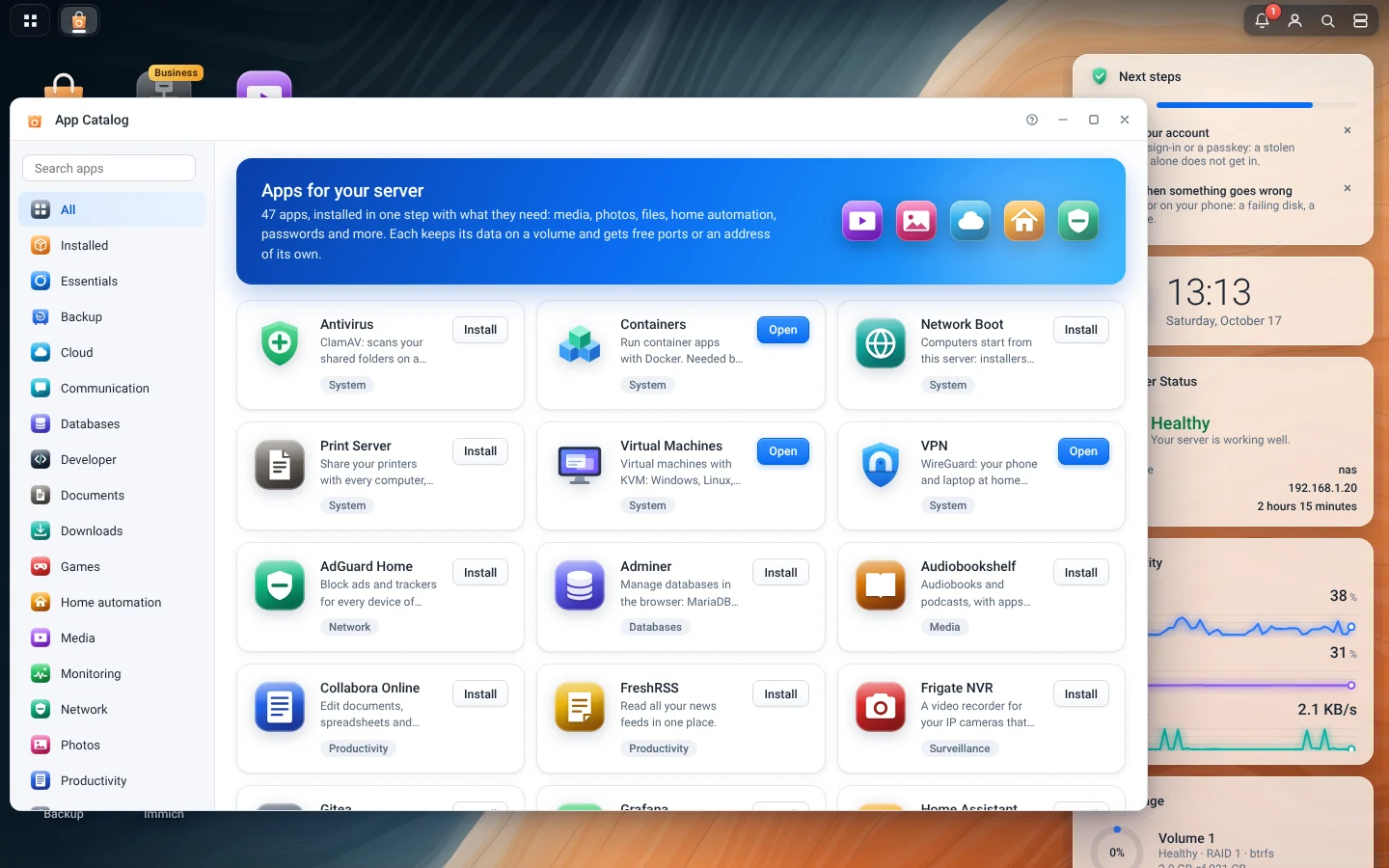
The App Catalog: apps by category, such as Antivirus, Containers, Virtual Machines and AdGuard Home, each with an Install or Open button.
Backup

Backups you can count on

  • To a USB drive, another server or cloud storage, on a schedule.
  • Encrypted before they leave the server.
  • Every month, OSM restores a sample and compares it with the files on the server.
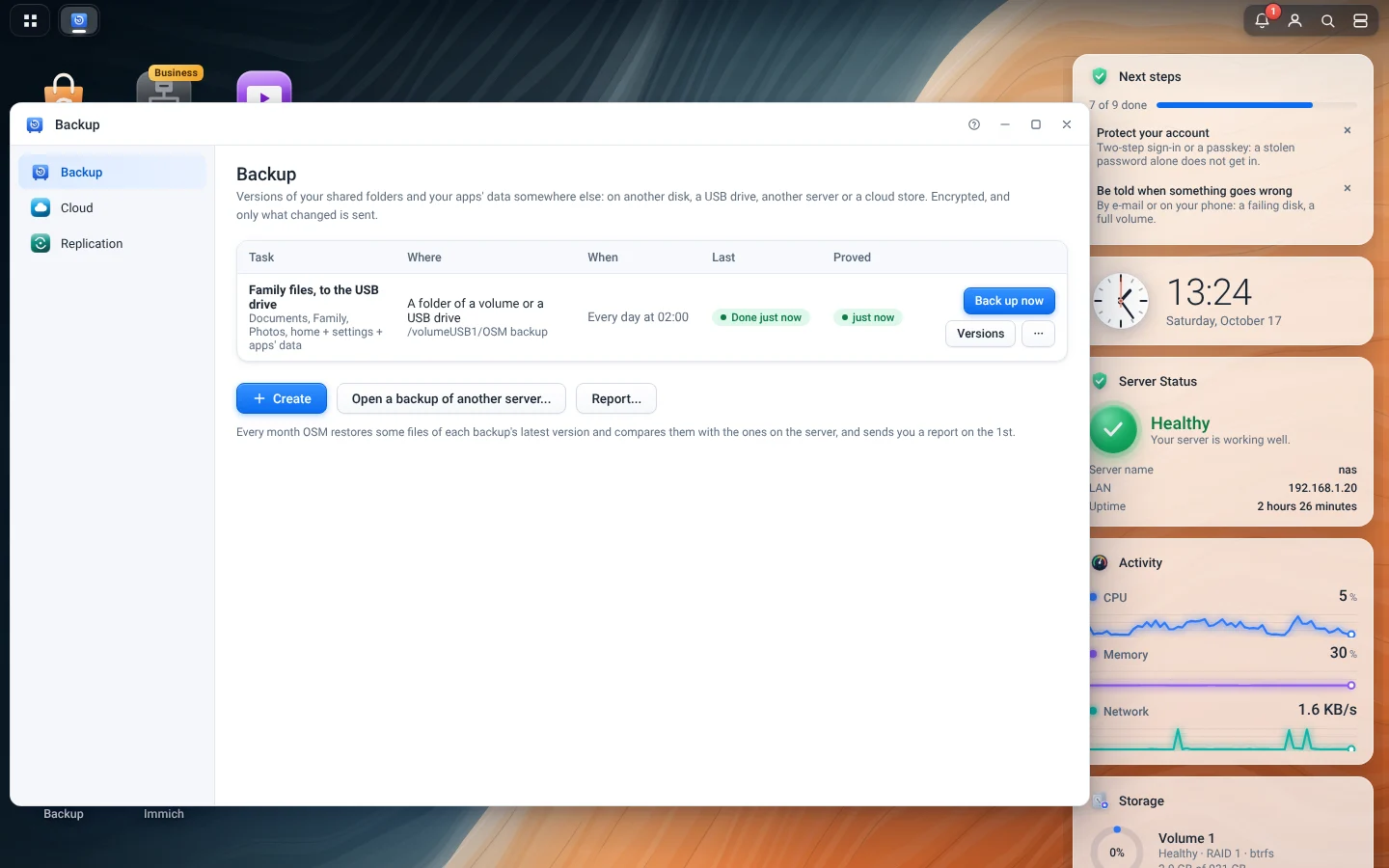
The Backup app: a backup task to a USB drive, every day at 02:00, last done and proved just now.
OSM Connect

Your server from anywhere. Nobody in between can read it.

OSM Connect gives your server an address of its own on the internet. There is nothing to open on your router, and the connection is encrypted from your browser all the way to your server: our relay passes it on without being able to read it.

  • Nothing to open on your router. Your server keeps a connection out to the relay.
  • Encrypted to your server. Its certificate and key are made on your server and never leave it.
  • A secret address. Scanners and password-guessing robots cannot find your sign-in page.
  • Your second factor, every time. Signing in from outside always asks for your code or passkey.
  • Our servers cannot sign in to yours. They hold no password, key or session of your server.
  • You decide. Turn it off, change the address, or remove the server from your account at any time.

See the plans How it works

Updates

Updates you can trust

OSM updates the system, the kernel, the system apps and each app of the App Catalog: tested together, signed, and never older than what you have.

Signed by OSM

Everything comes from OSM's update service, and from nowhere else, checked against OSM's keys before anything is installed.

Tested together

Each release is a fixed set, tested before it reaches you, and it reaches servers in steps.

Never backwards

Your server never installs an older version of anything, even one that is properly signed.

A safety net

A restore point before each update, a watch after it, and the way back by itself when an update broke something.

OSM does not update your computer's BIOS or UEFI firmware, or its disks' own firmware: use the maker's tools for those. More in Updates and upgrades.

Hardware

Runs on what you have

  • A 64-bit PC with UEFI or BIOS, or an arm64 computer with UEFI.
  • 4 GB of memory or more: 8 GB for apps, 16 GB for virtual machines.
  • One disk or more; OSM can put itself on each of them, mirrored.
  • Or in a virtual machine: images for Proxmox VE, VirtualBox, VMware and Hyper-V.

Download OSM What a server needs