OSM in pictures
A tour of OSM 0.1.0, from the USB stick to every app. The pictures come from the real installer and from a test server running in a virtual machine; the account in them (Anna Berger) is an example.
| Installing from the USB stick · The desktop · Storage · Shared folders and accounts · Files · Apps and virtual machines · Backup · Network and security · System · The server's own screen |
|---|
Installing from the USB stick
The stick's start-up menu
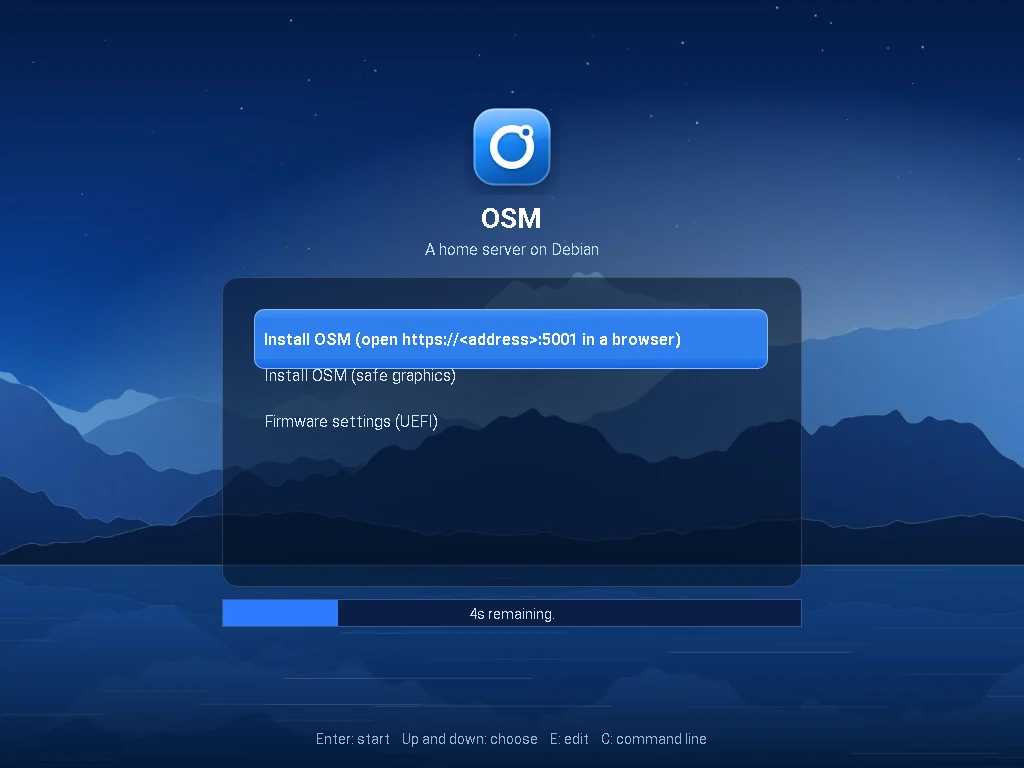
Install OSM, a safe-graphics choice and the firmware's settings. When OSM is installed already, starting it from the disks comes first.
The server's own screen
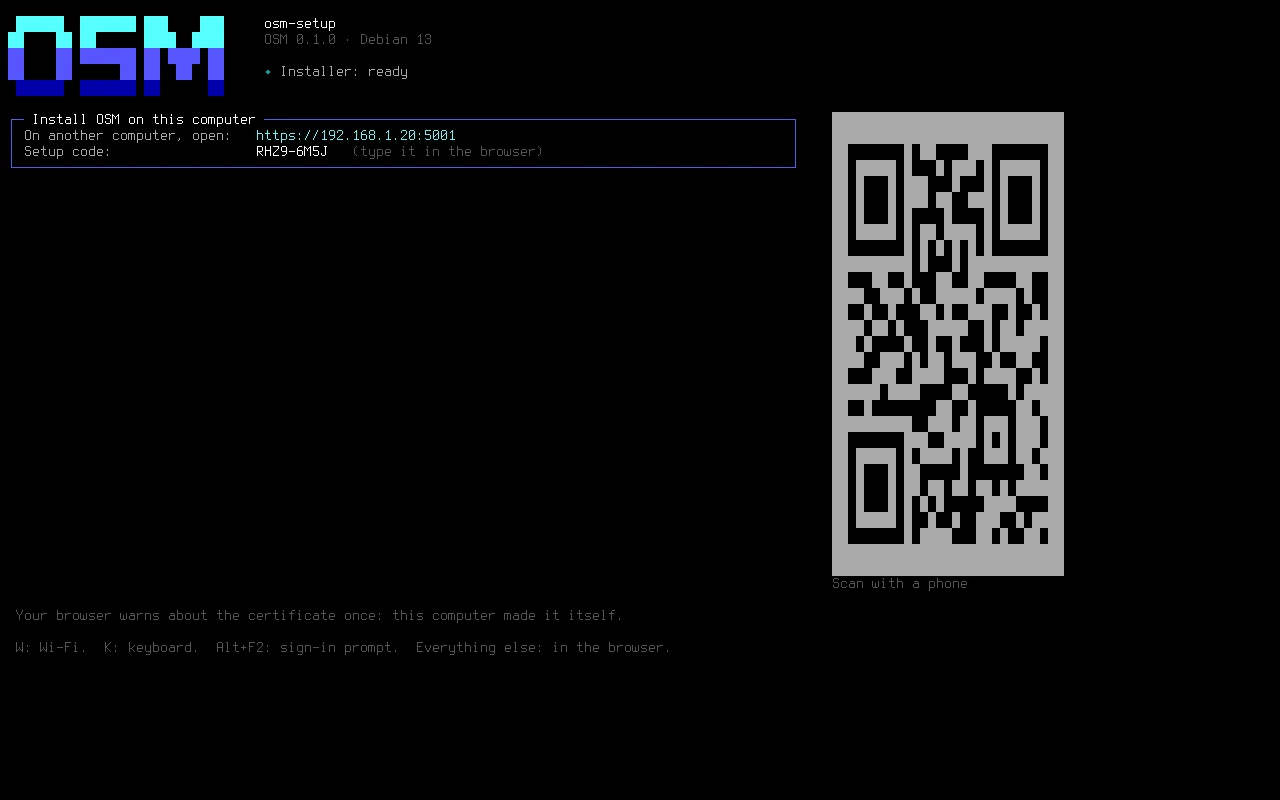
The address to open in a browser on another computer (a QR code for a phone too), and a setup code that keeps everyone else out.
The setup code
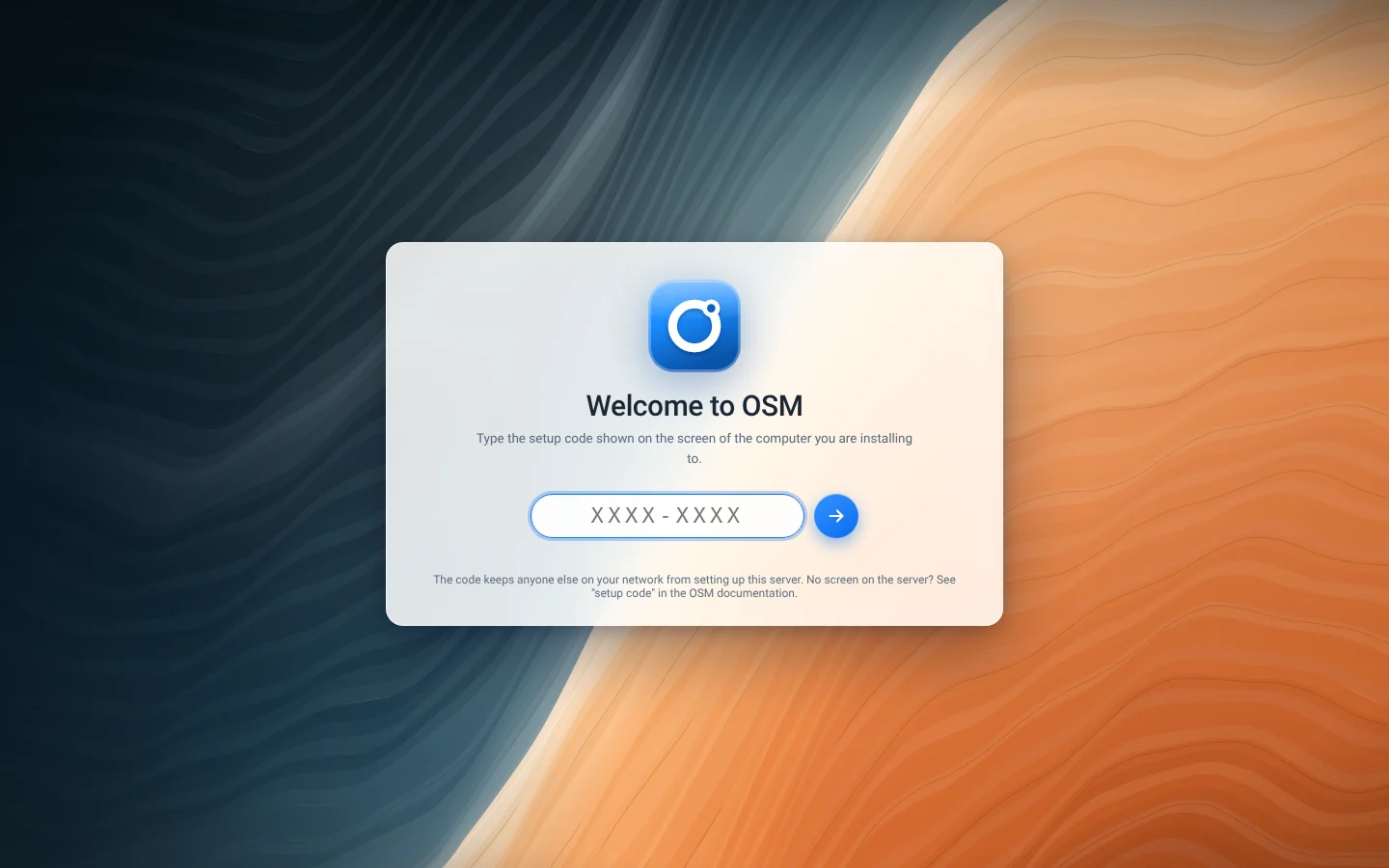
Typed in the browser: only someone who can see the server's screen can install it.
Welcome
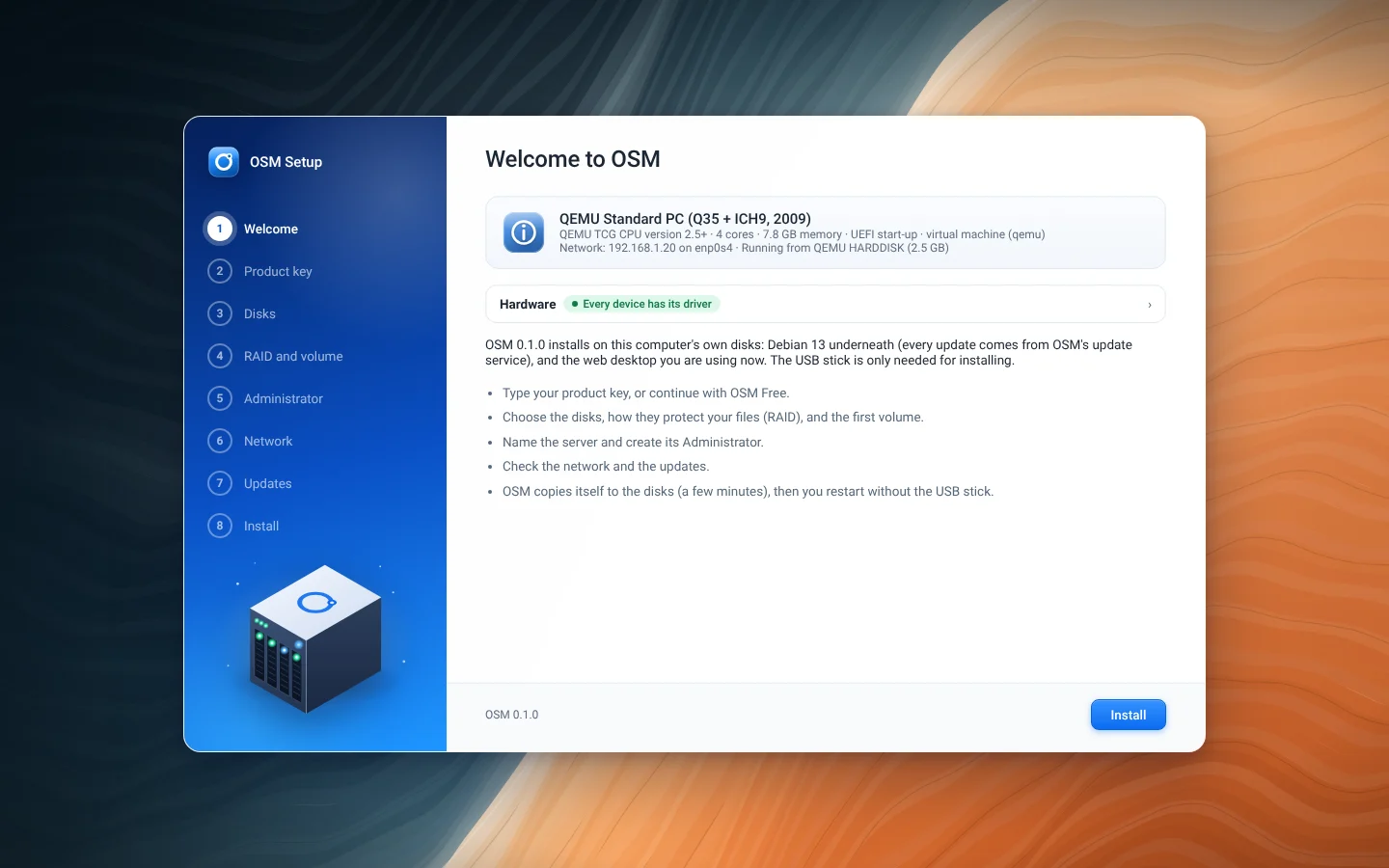
What the computer is, its network, and whether every device has its driver. Save a hardware report is here too.
Product key
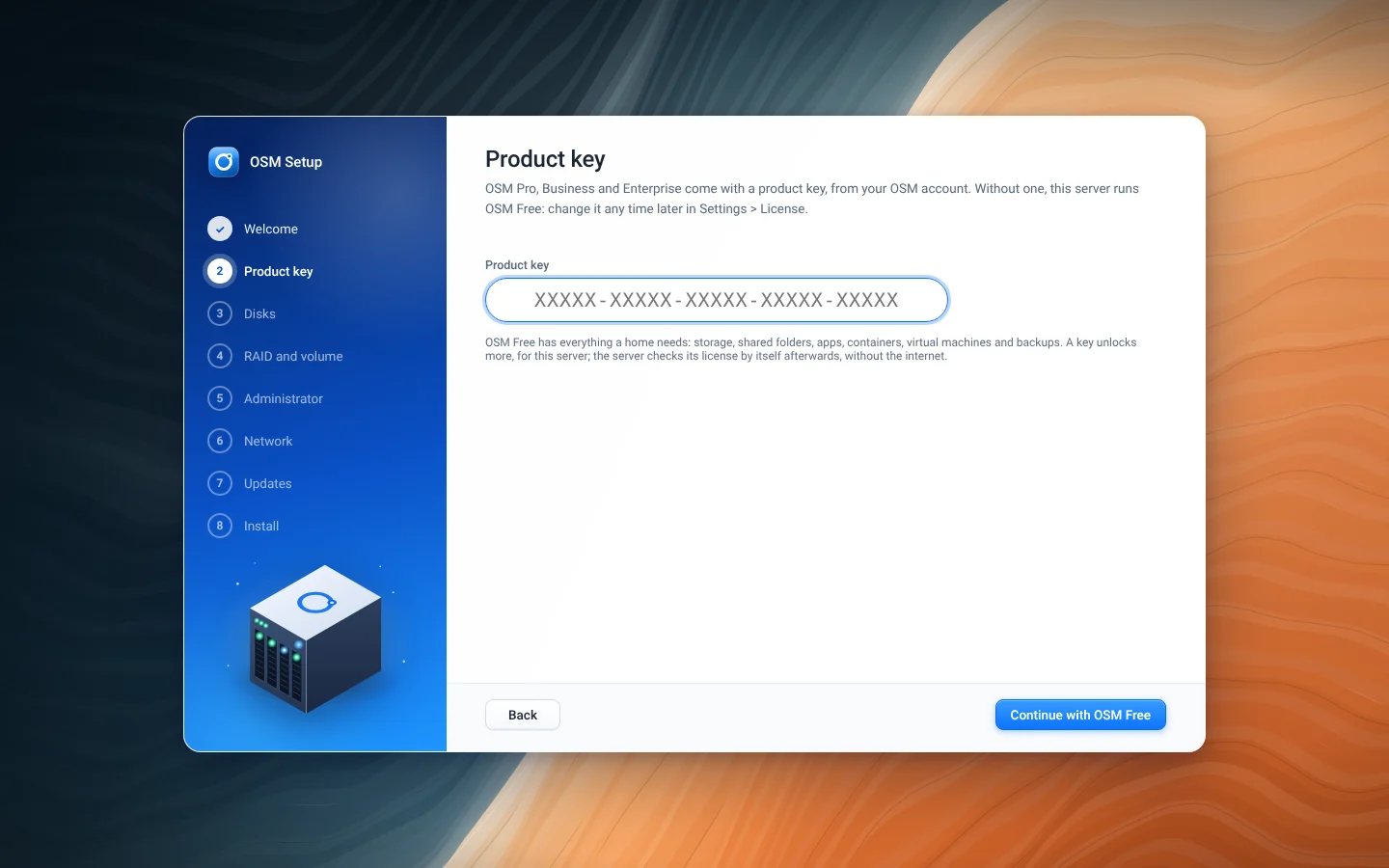
A key for OSM Pro, Business or Enterprise, or OSM Free without one. It can change later in Settings > License.
Choosing the disks
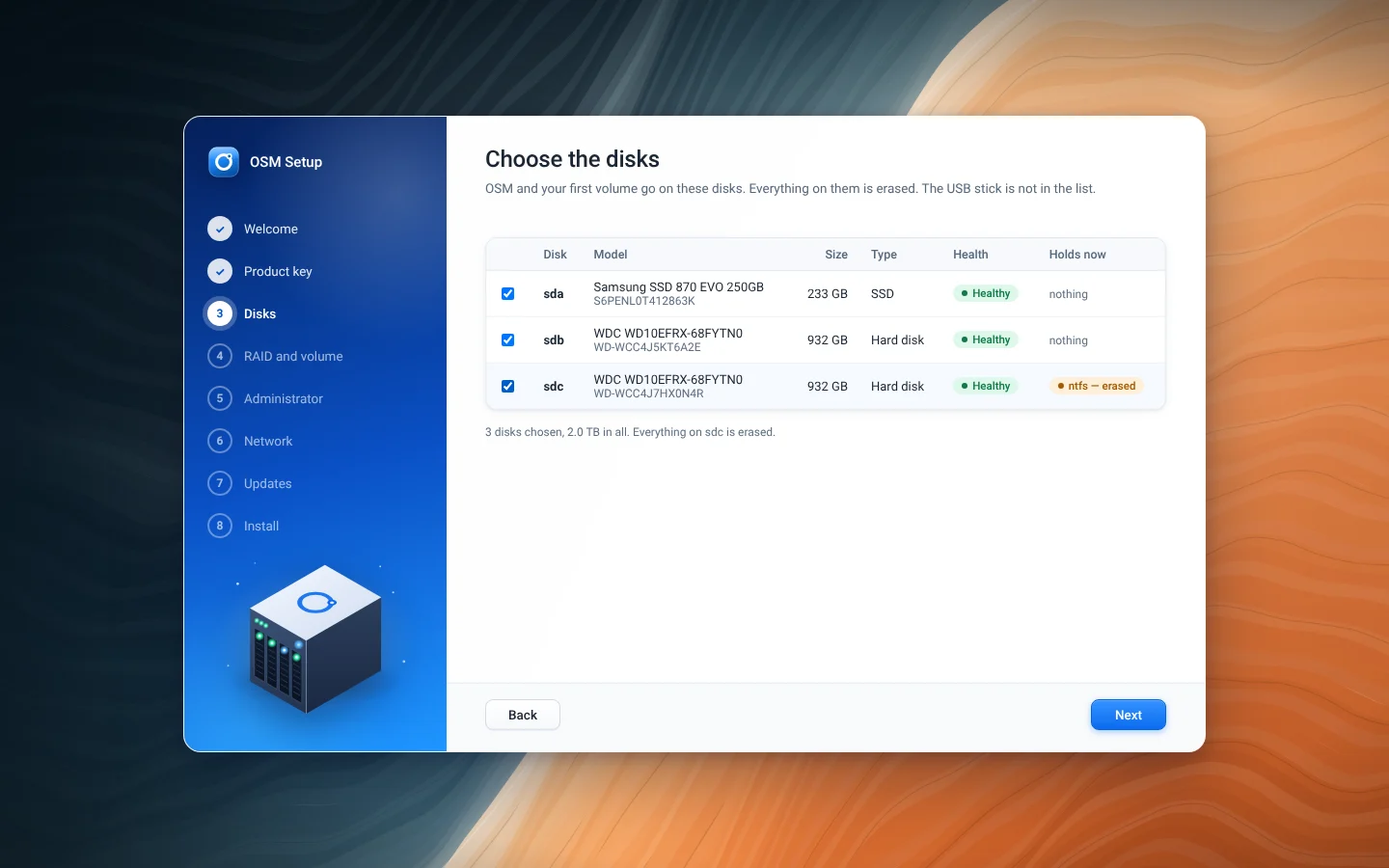
Each disk with its model, size, health and what it holds now; the stick is not in the list. A disk that holds something is chosen only by hand, and is erased.
Disks, RAID and volume
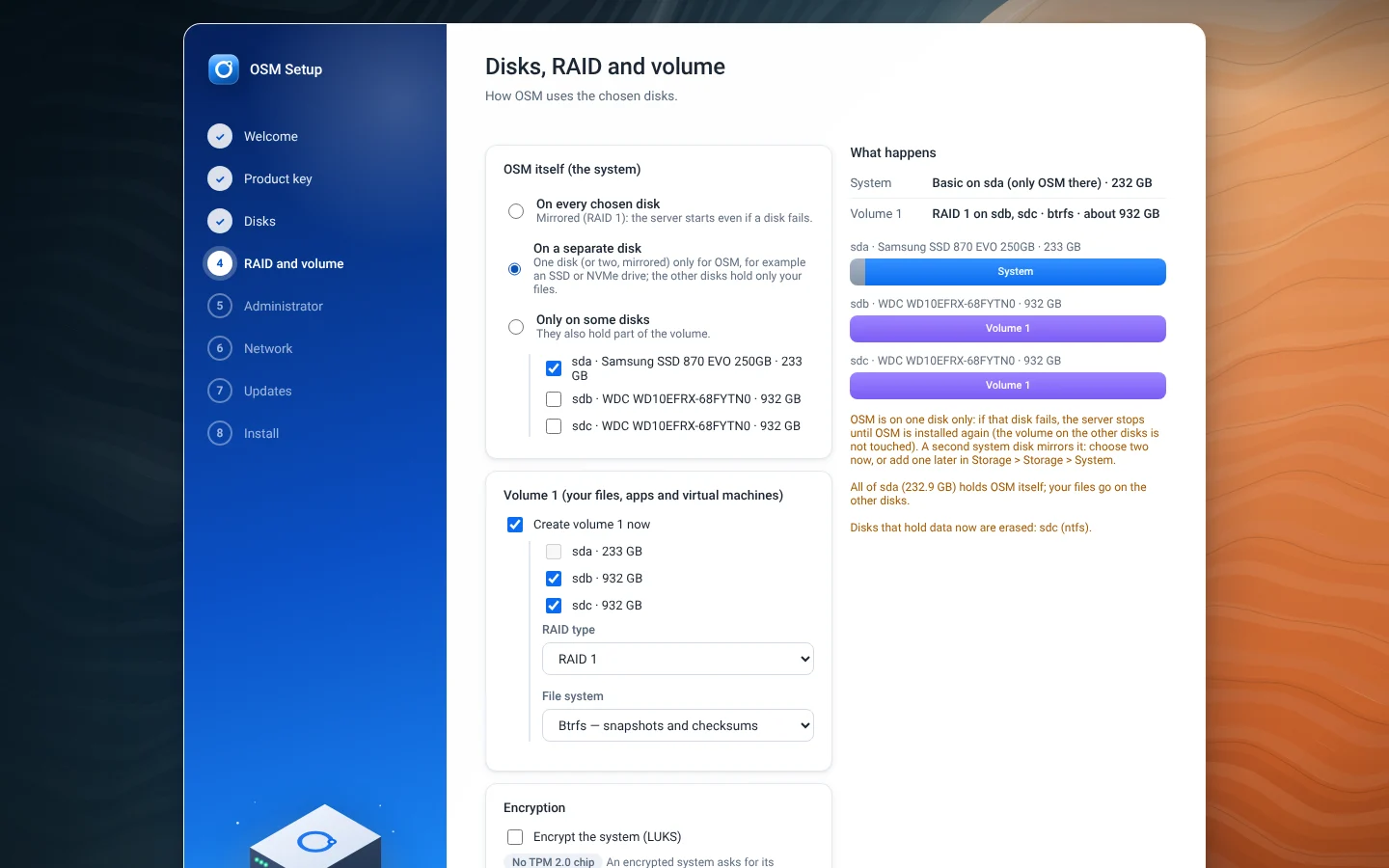
Here OSM on the SSD alone, and volume 1 as Btrfs on RAID 1 on the two hard disks. The bars show what goes where.
The server and its Administrator
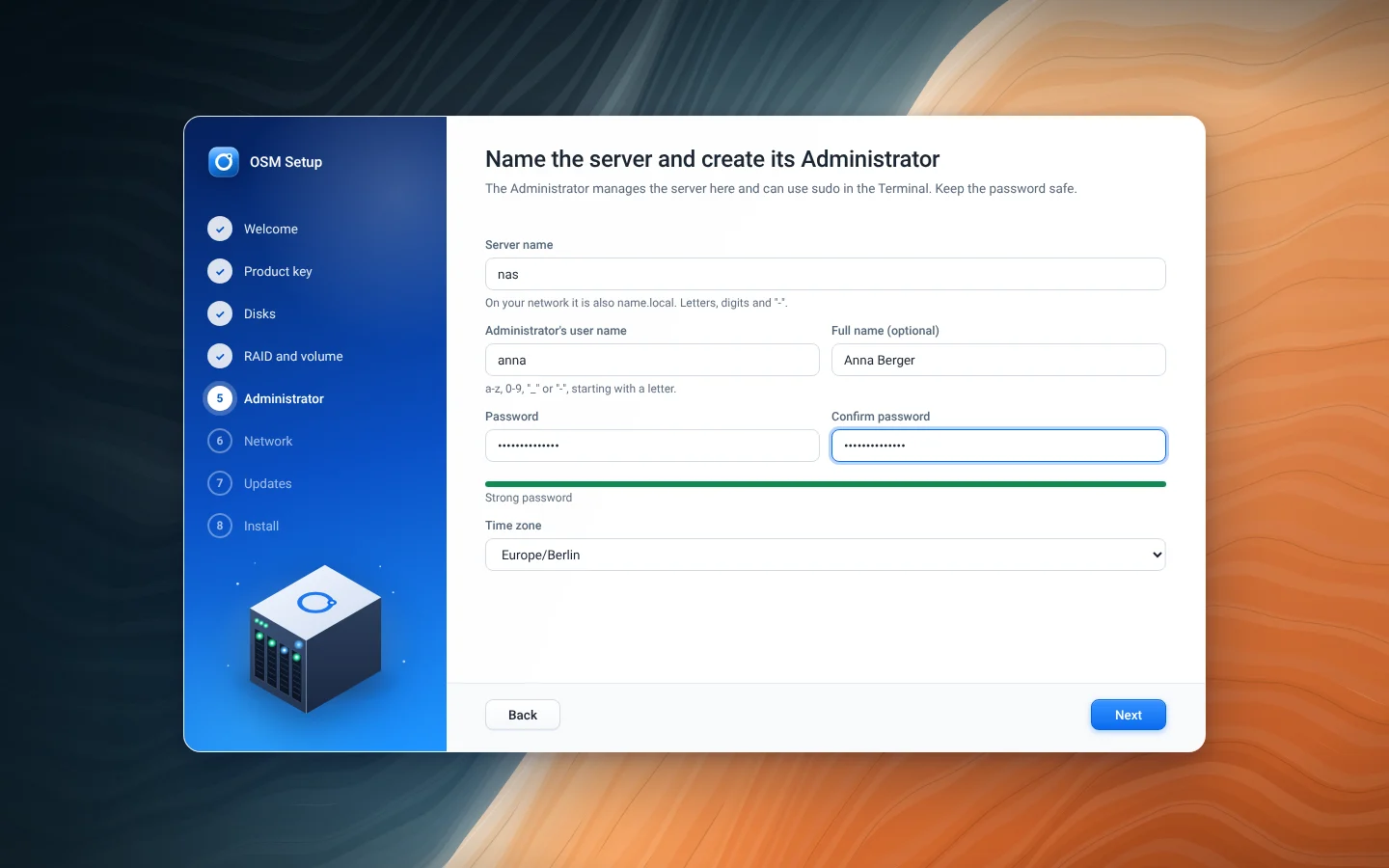
No default password: you create the first account.
Network
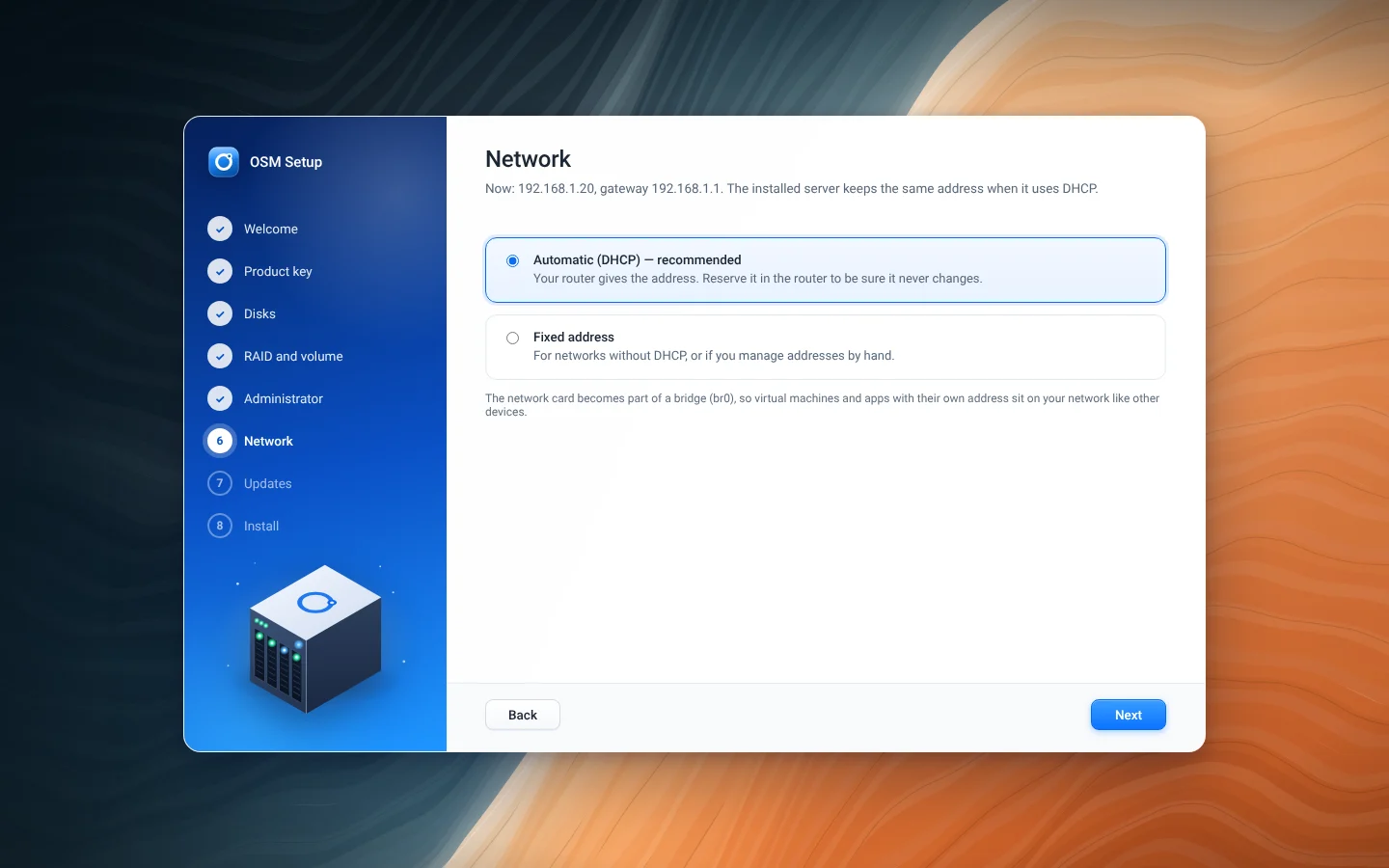
Automatic (DHCP), or a fixed address.
Updates
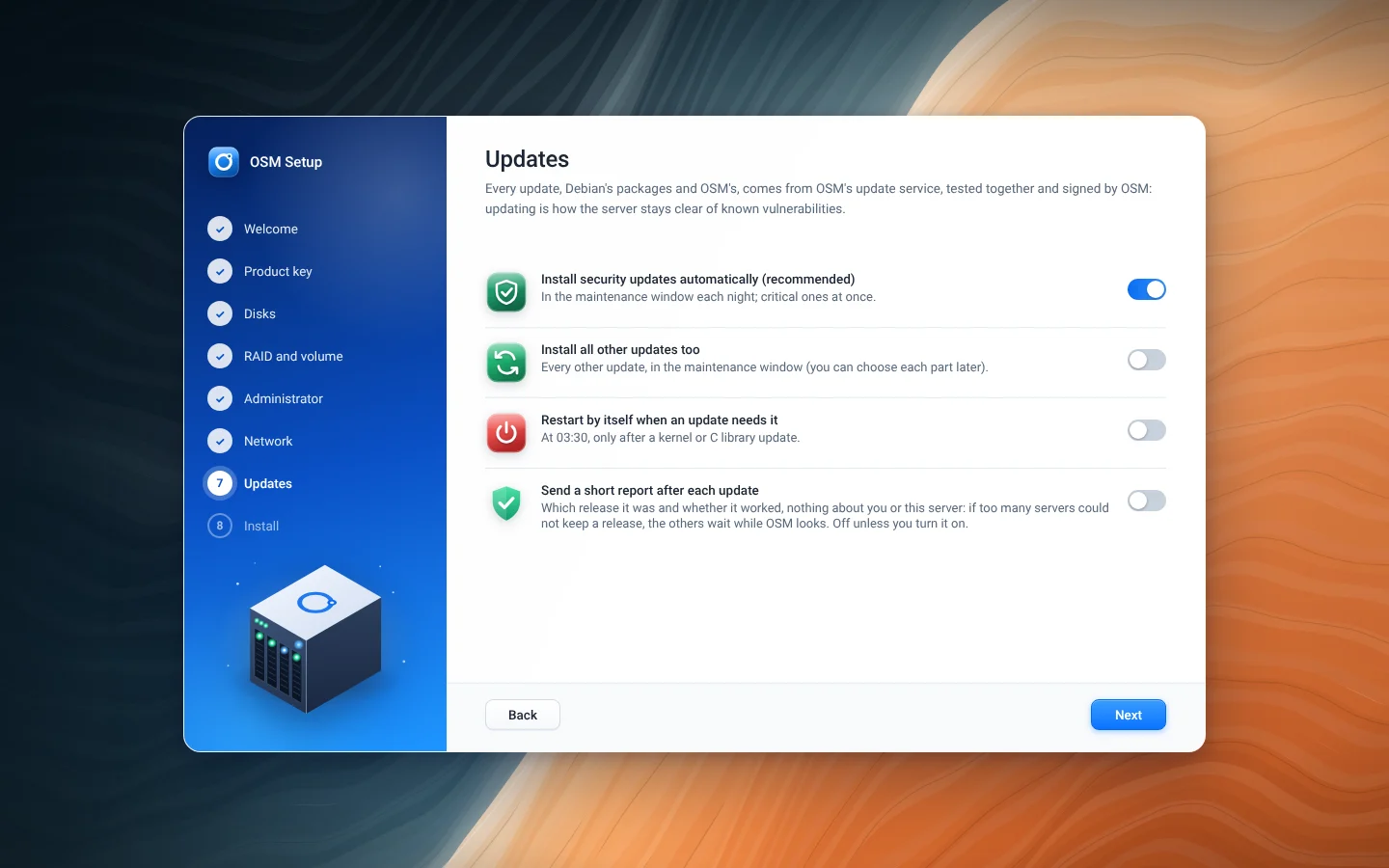
Every update comes from OSM's update service. Security updates install by themselves each night, the rest when you choose.
Ready to install
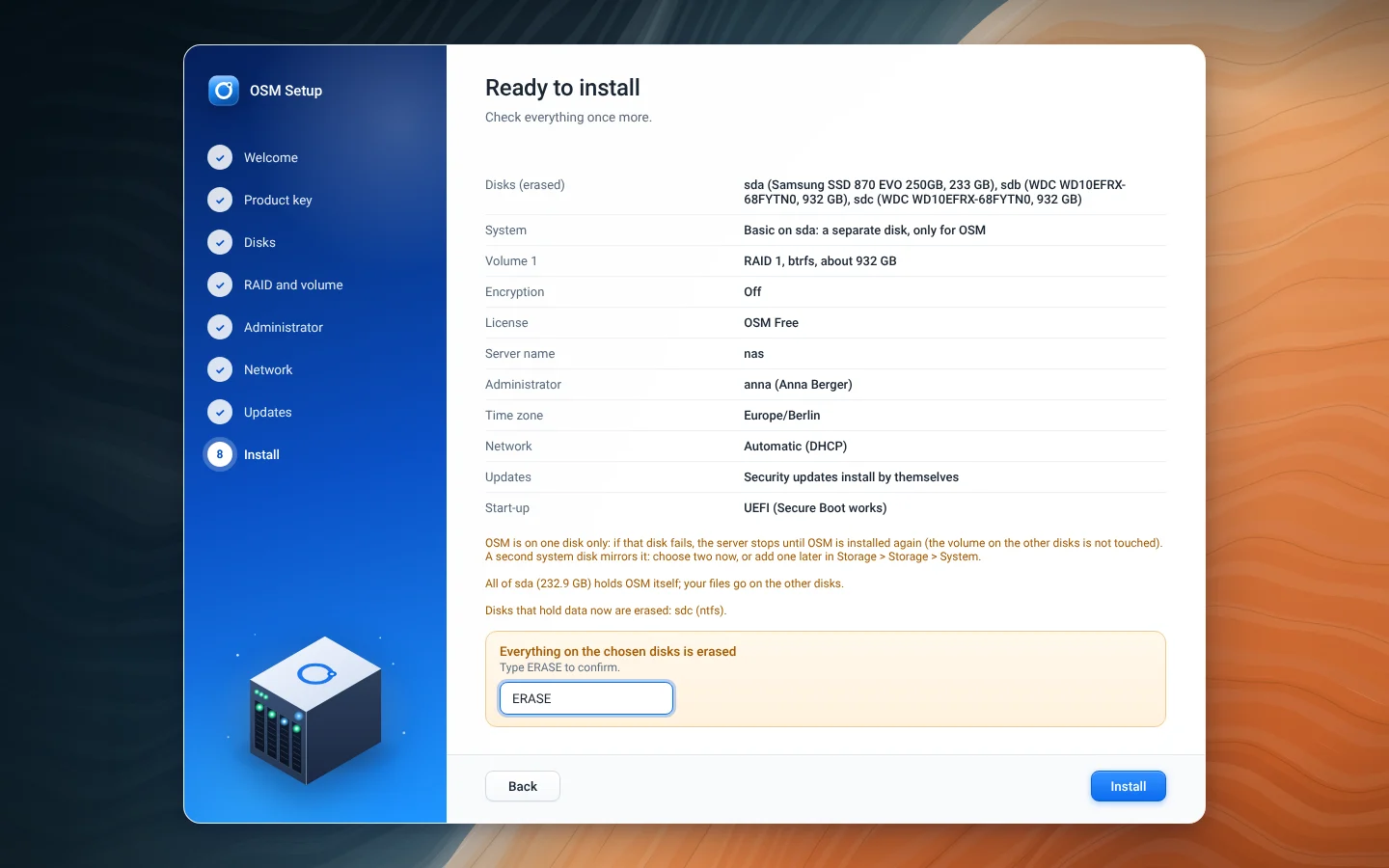
Everything once more, and ERASE typed to confirm.
Installing
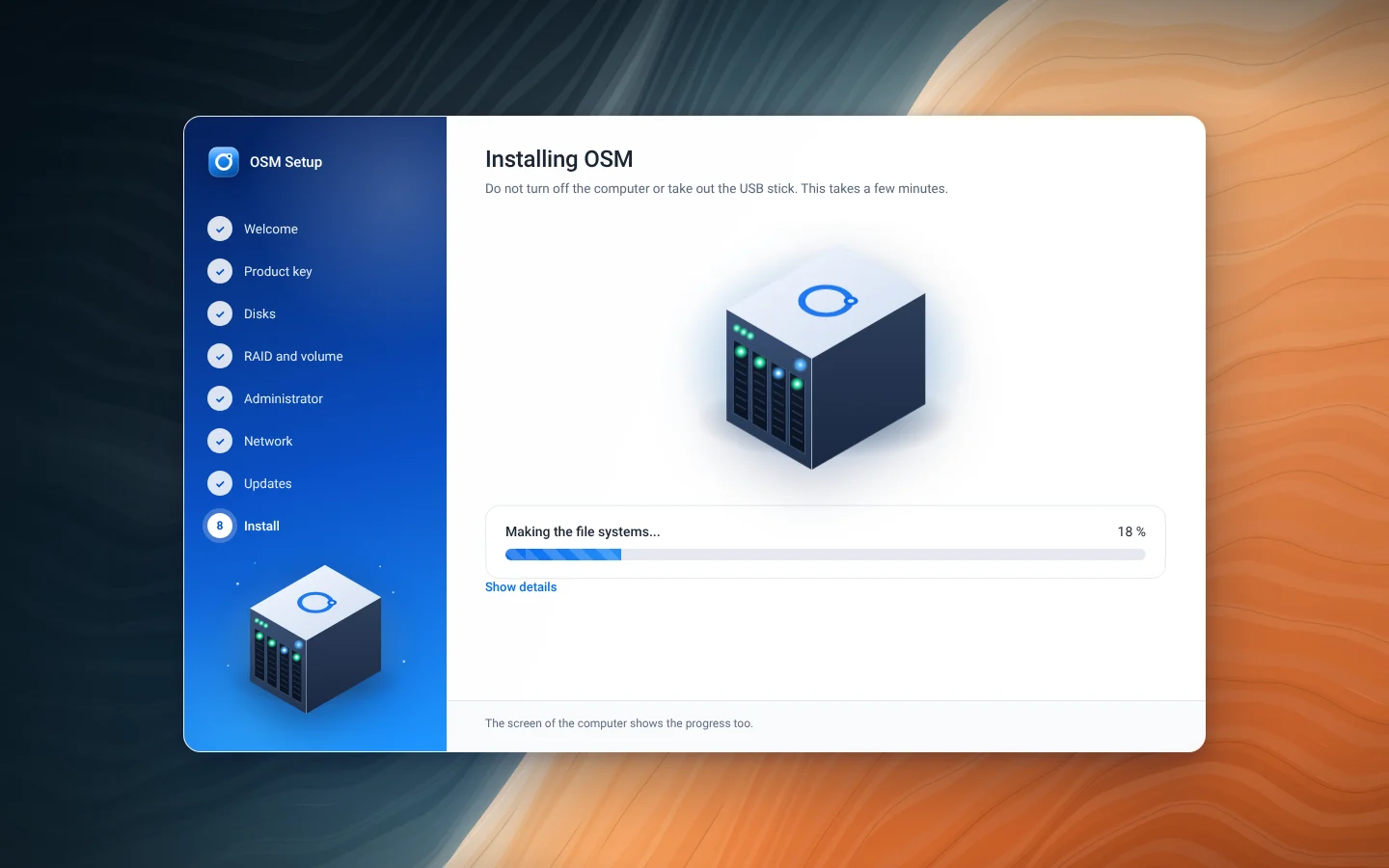
A few minutes. The server's screen shows the progress too.
Installed
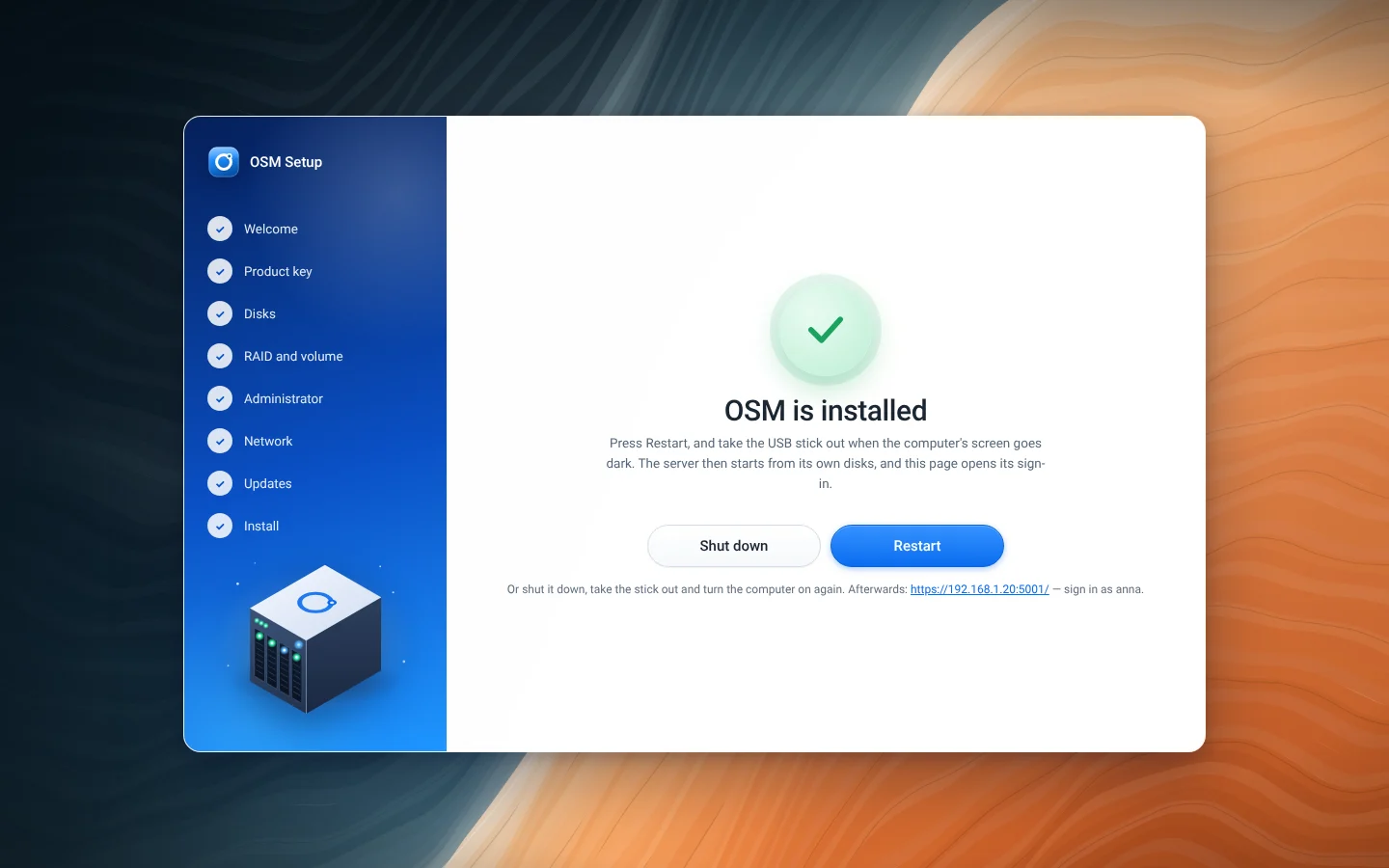
Restart, and take the stick out.
Restarting
The page waits for the server and opens its sign-in.
Signing in
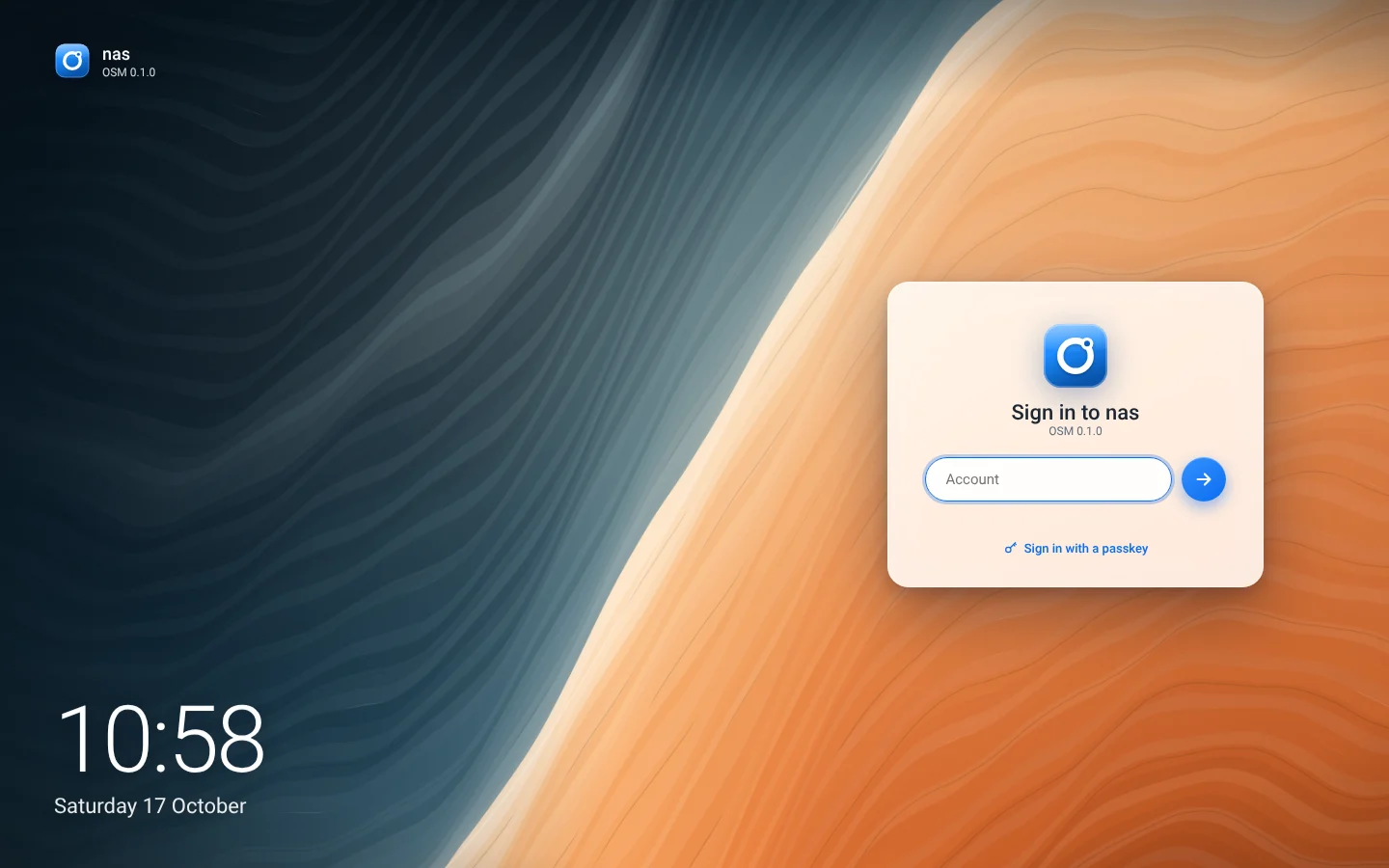
The installed server, with passkeys as well as passwords.
The desktop
The desktop
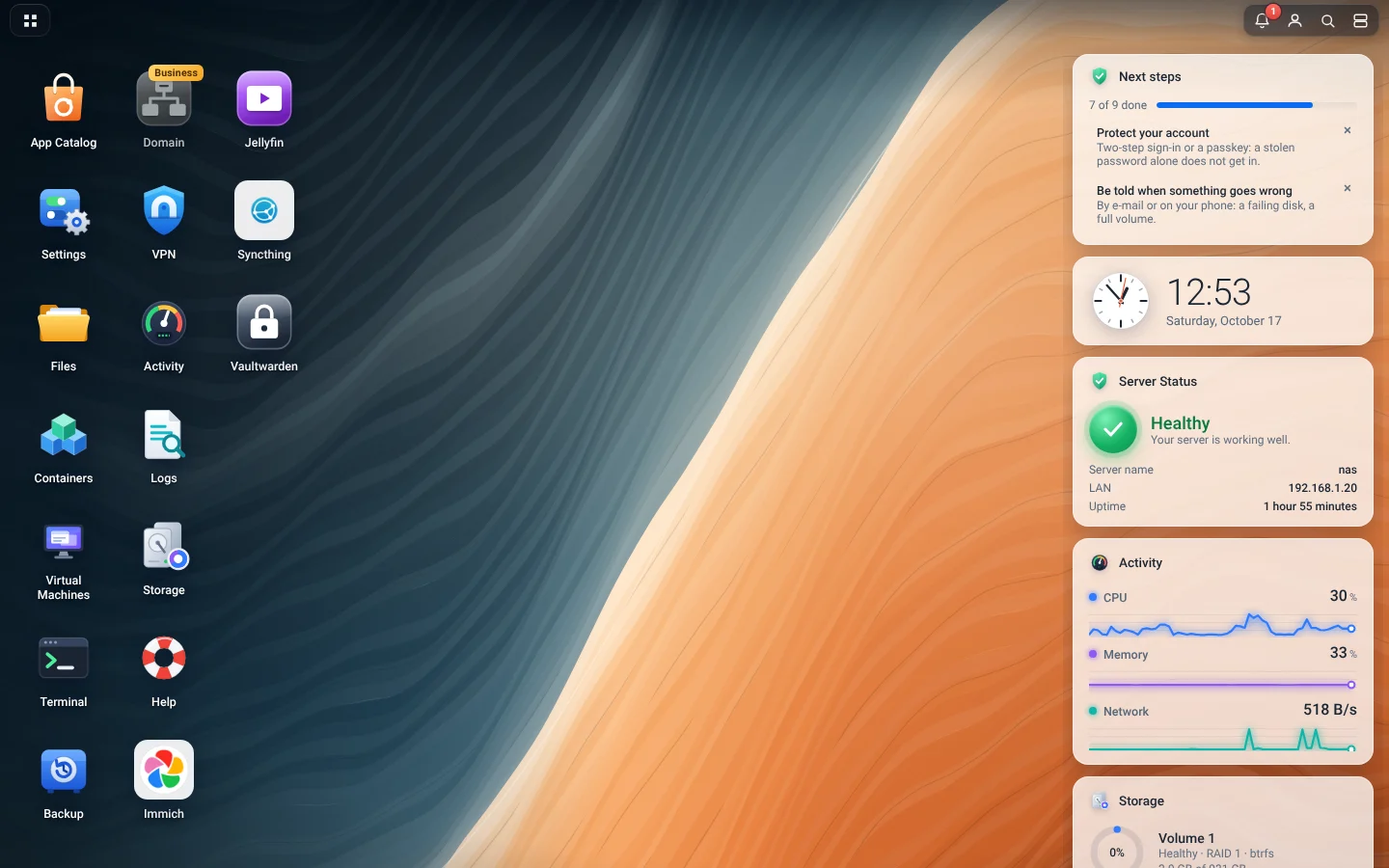
The apps on the left, the server's health, resources and storage on the right, and the top bar with All apps, search and notifications.
All apps
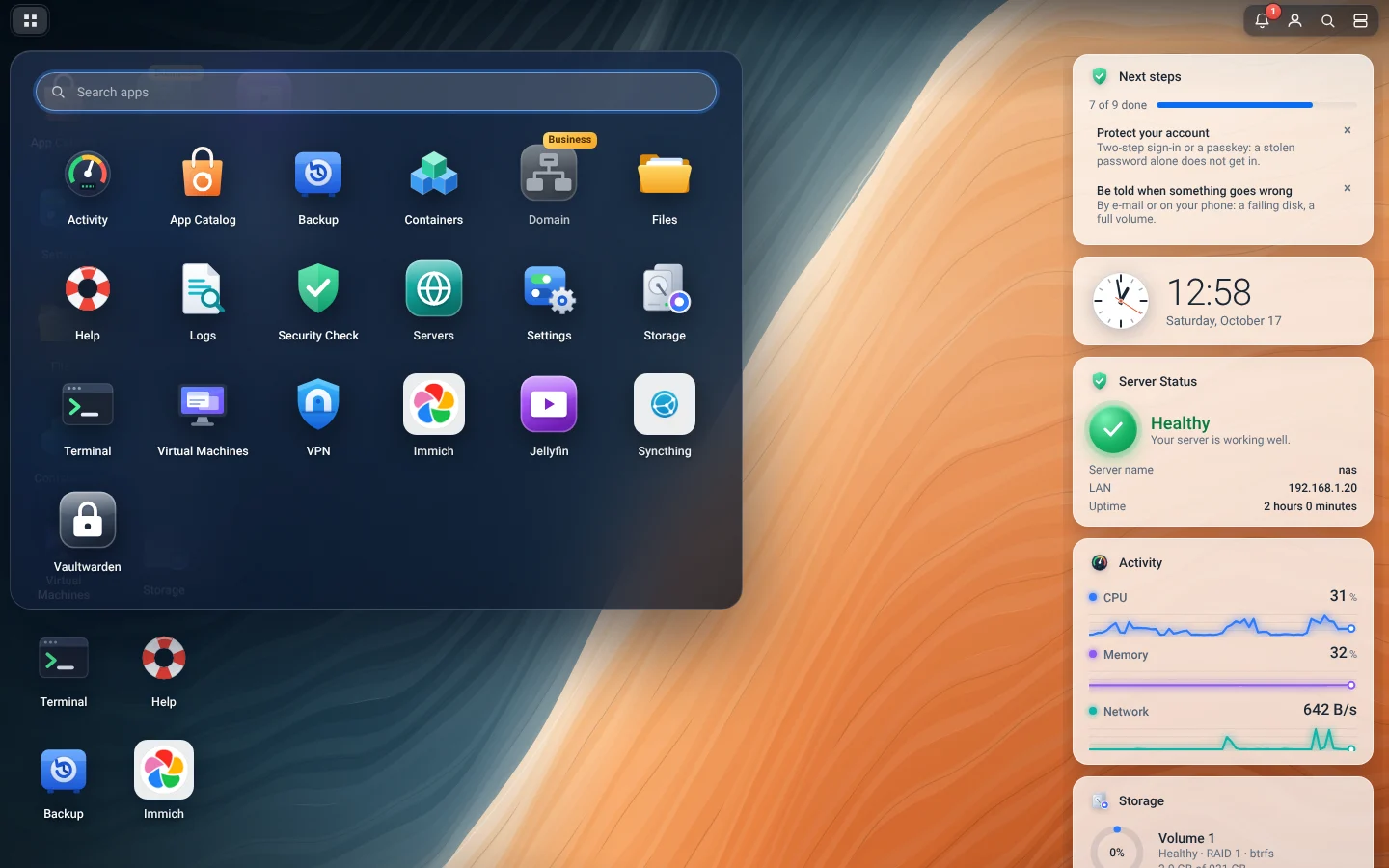
Every app and every Settings page, by group.
Search
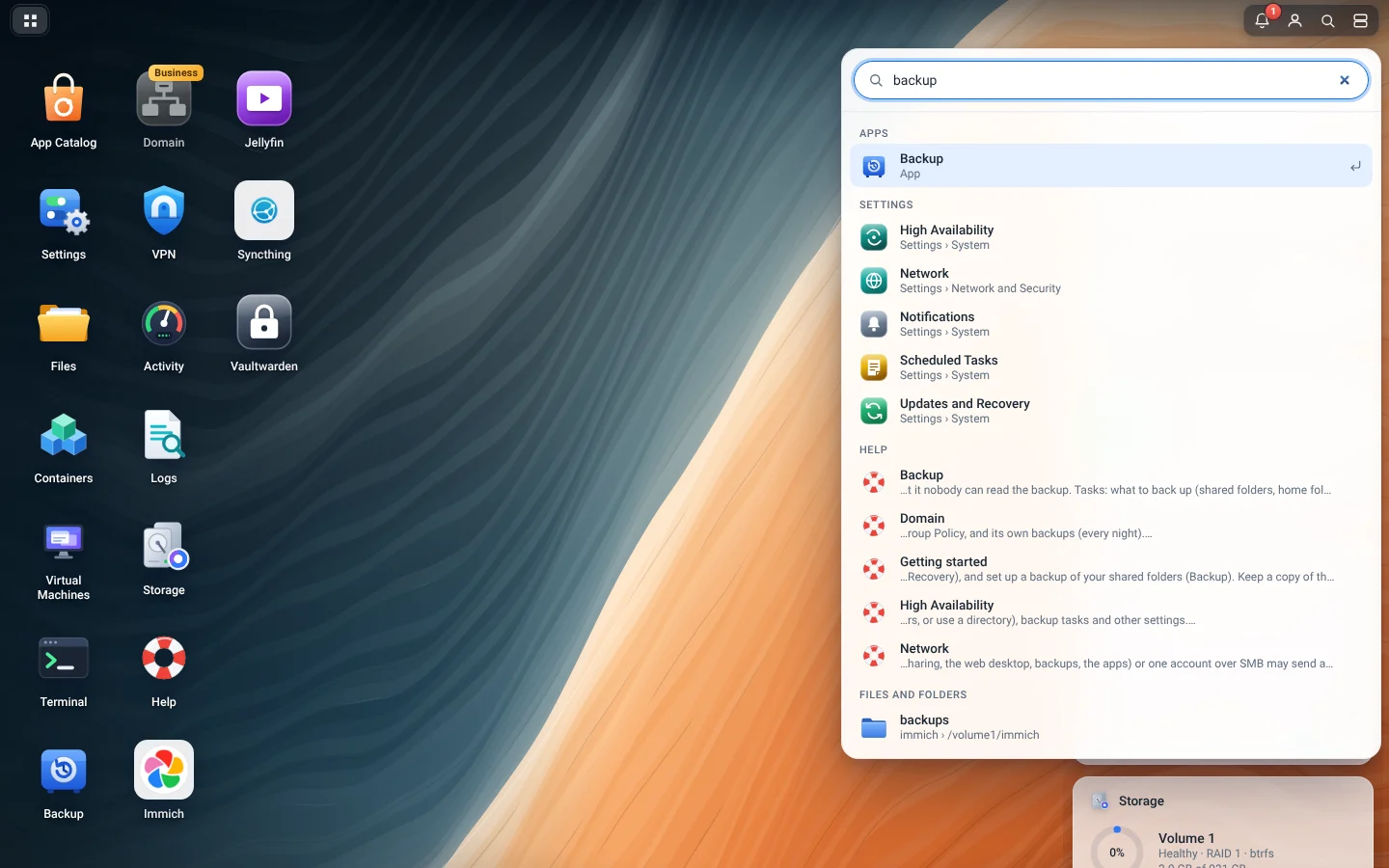
Apps, settings, help topics, the names of files and the words in documents, as you type.
Notifications
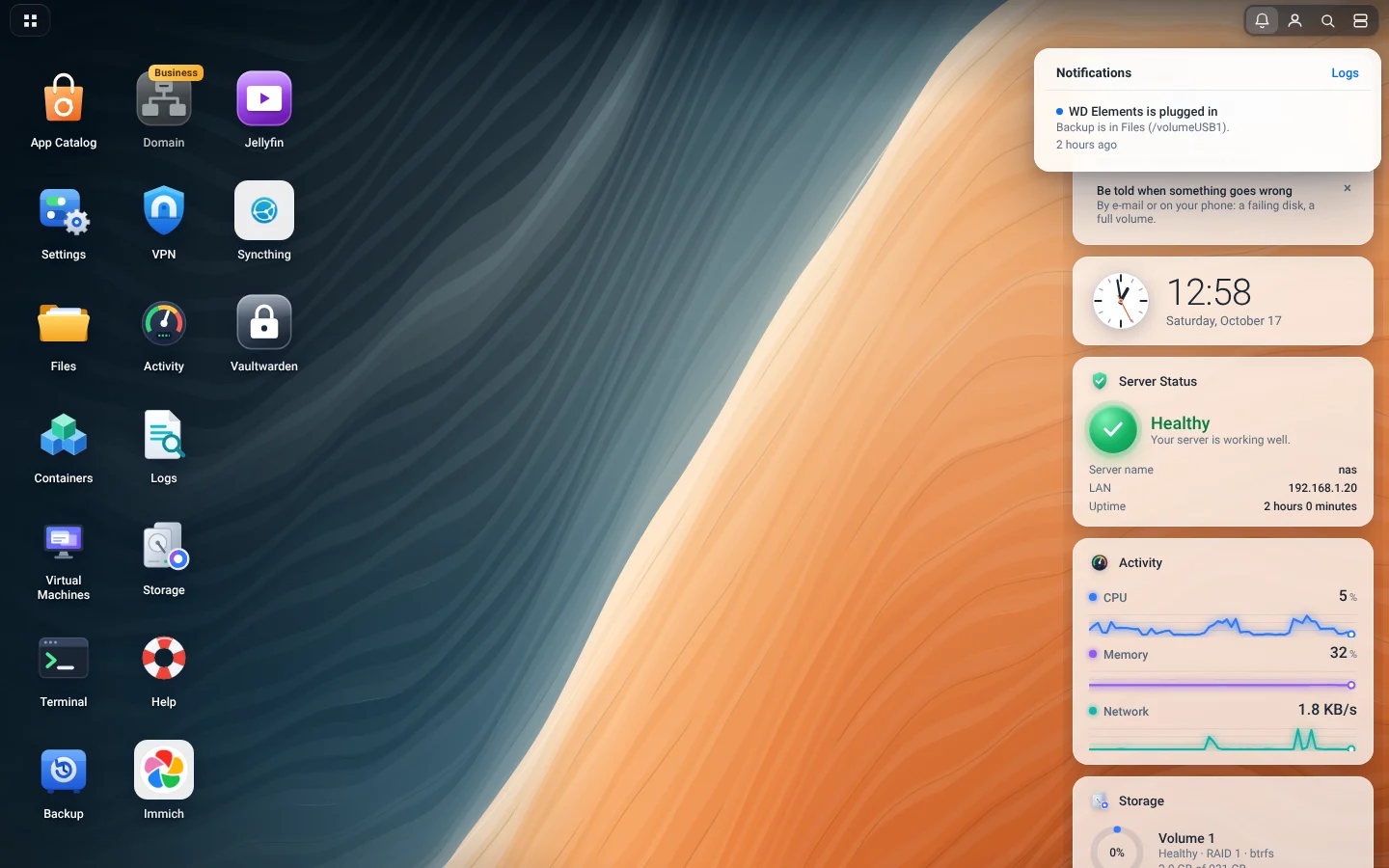
What happened, and what needs you.
Dark mode
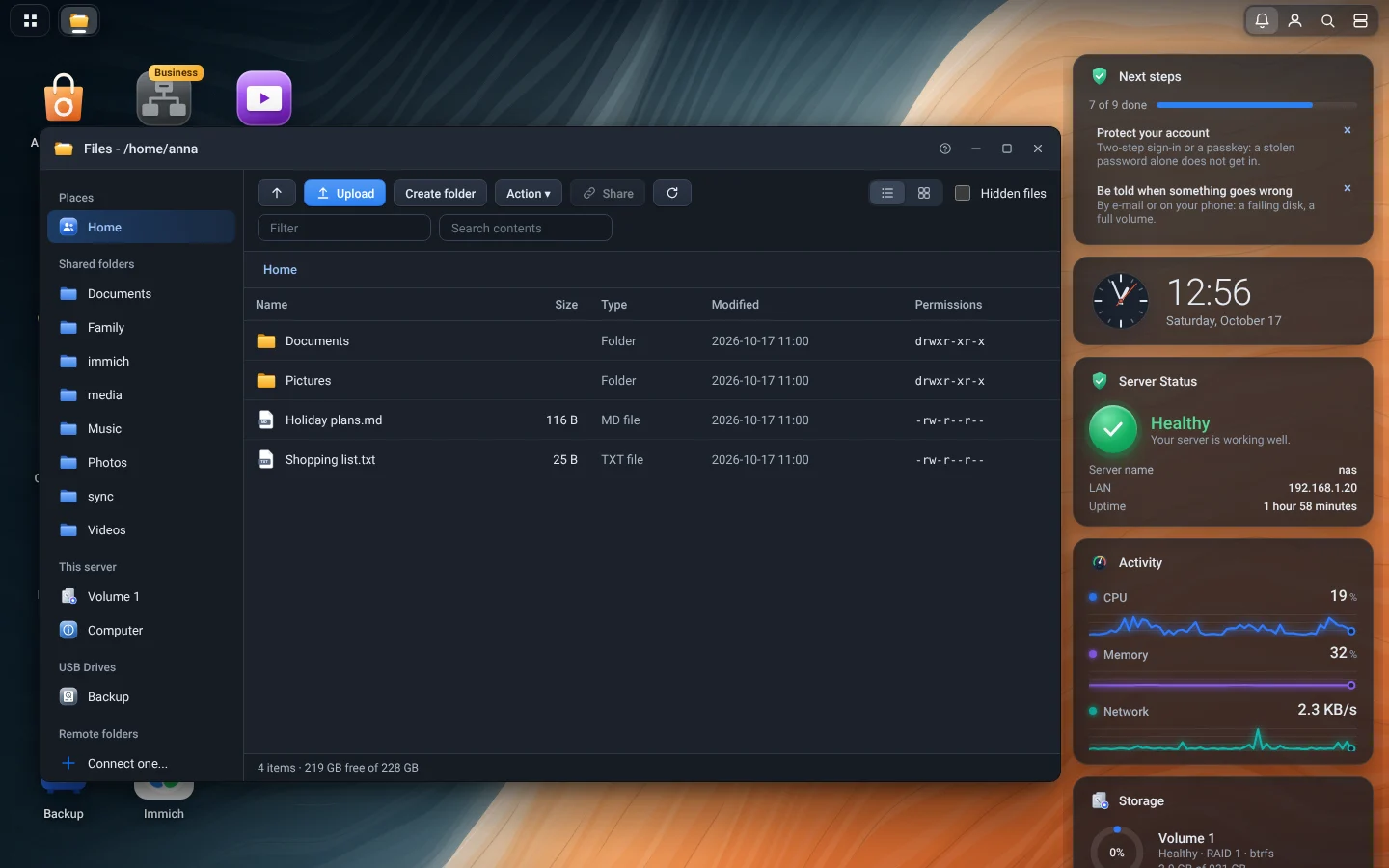
Light, dark, or as the computer is set.
Storage
Storage
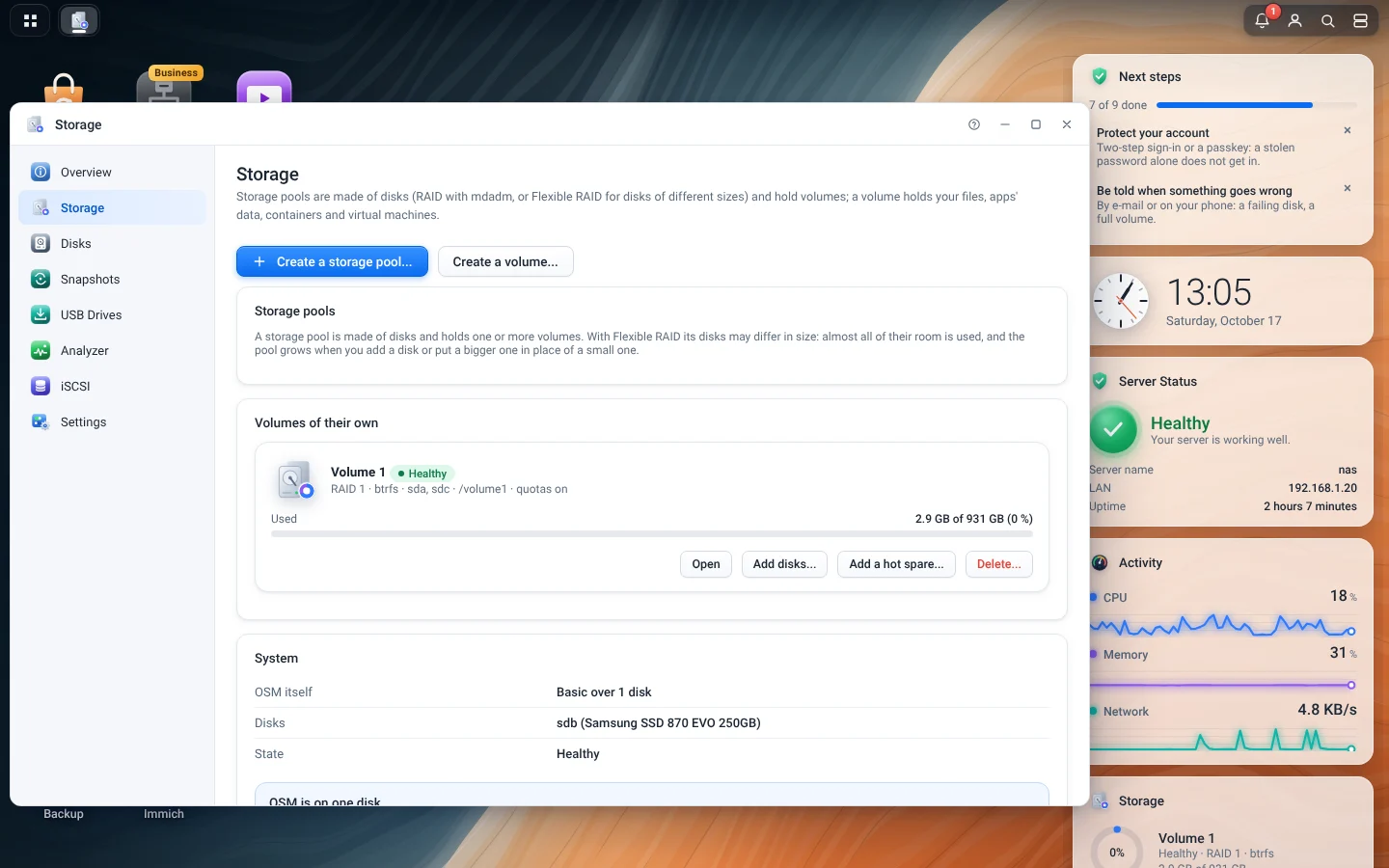
Storage pools and volumes, their RAID and health.
Disks
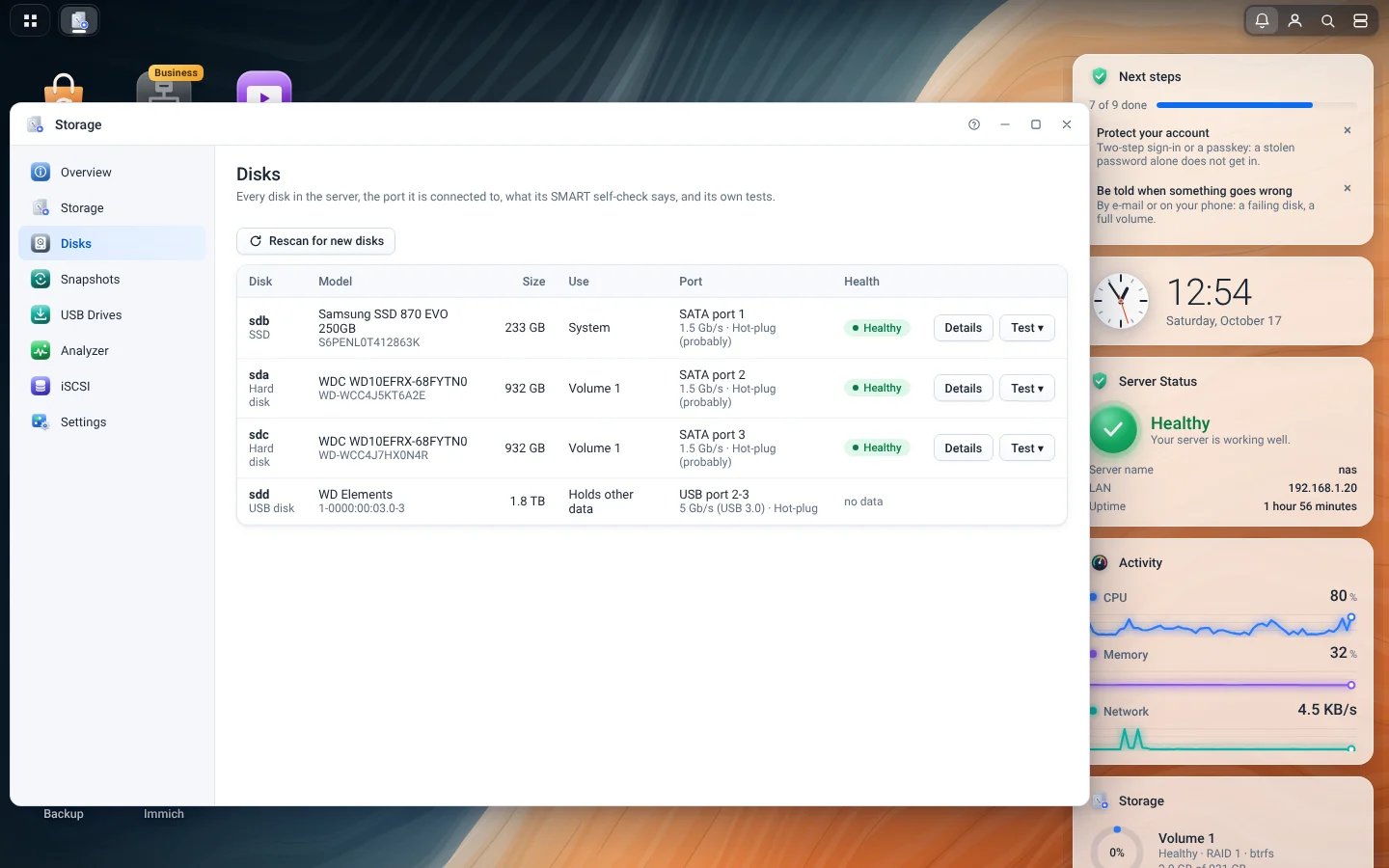
Every disk, its port, temperature and SMART health.
Snapshots
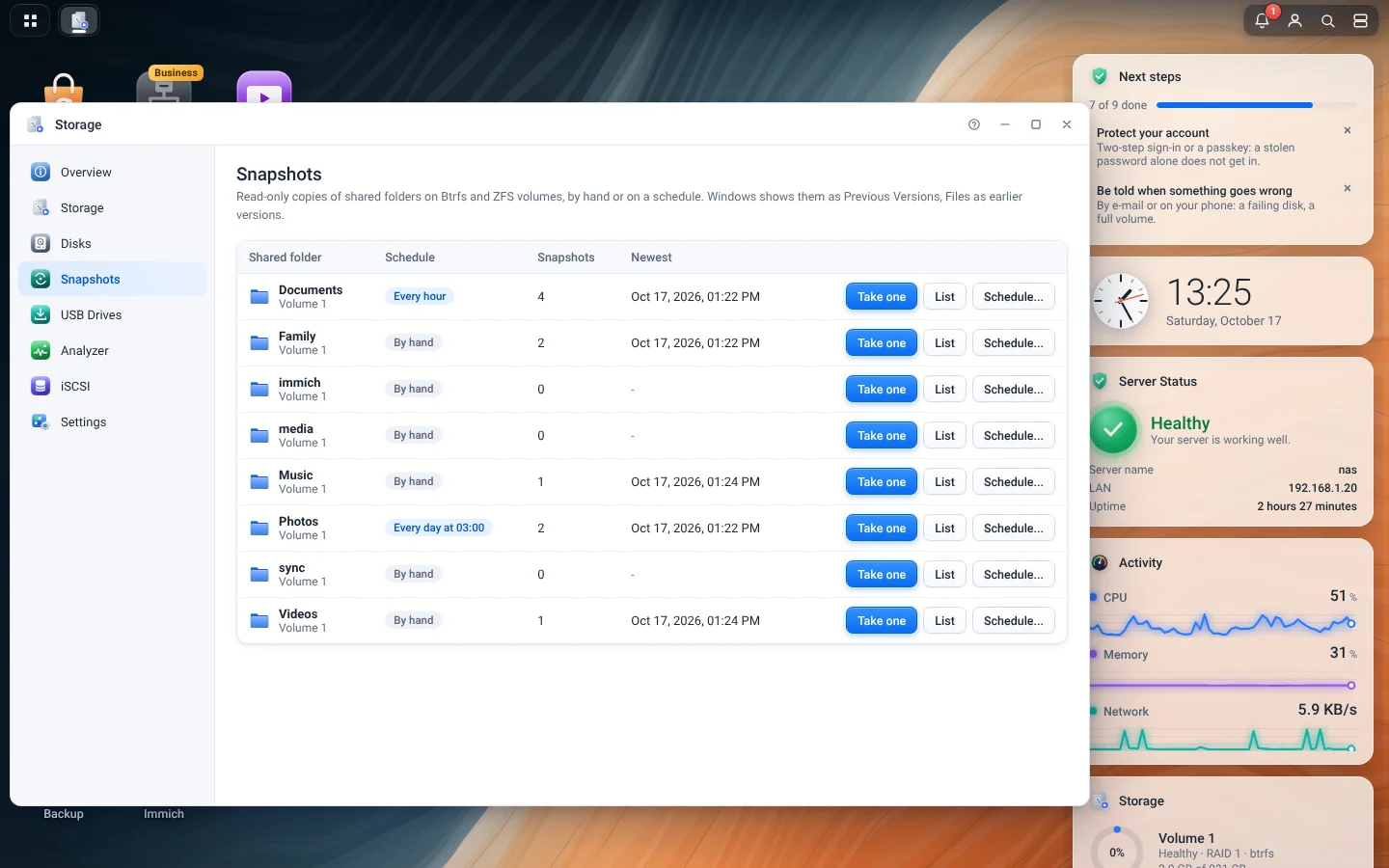
Snapshots of the shared folders of Btrfs and ZFS volumes, by hand or on a schedule, immutable if you want.
USB drives
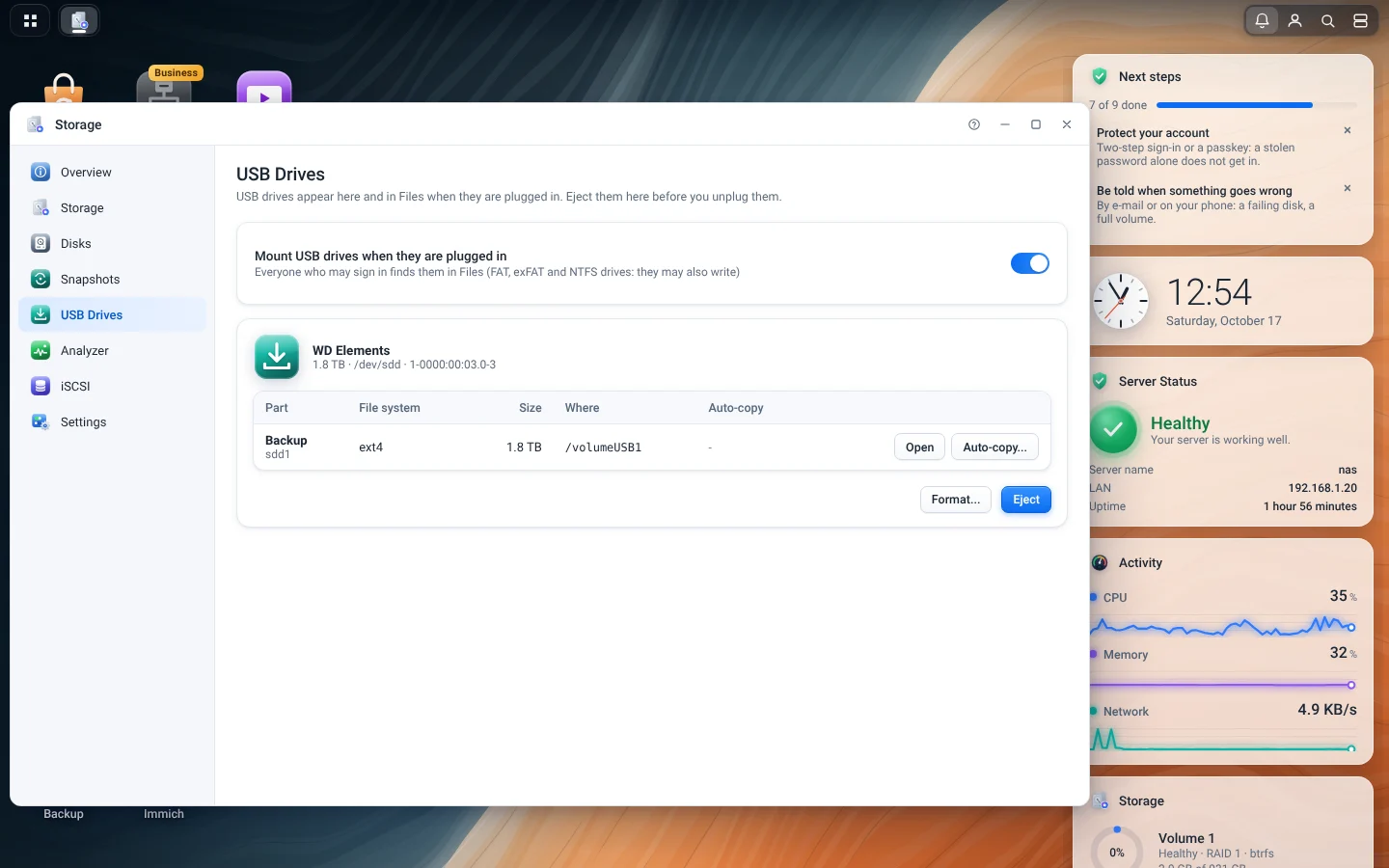
USB drives as they are plugged in: eject, format, and Auto-copy of a folder into a shared folder.
Shared folders and accounts
Settings
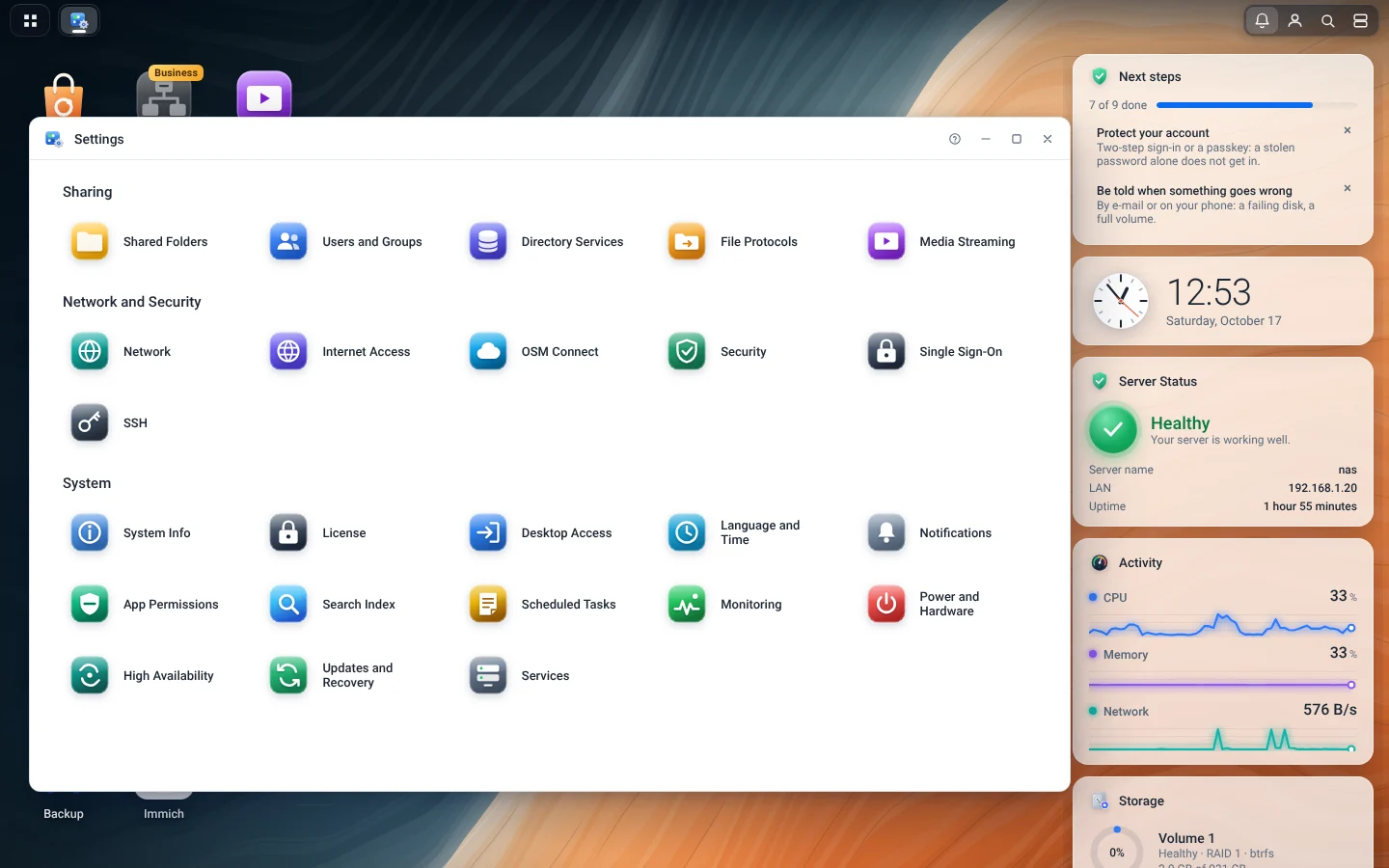
Every setting of the server, in three groups.
Shared Folders
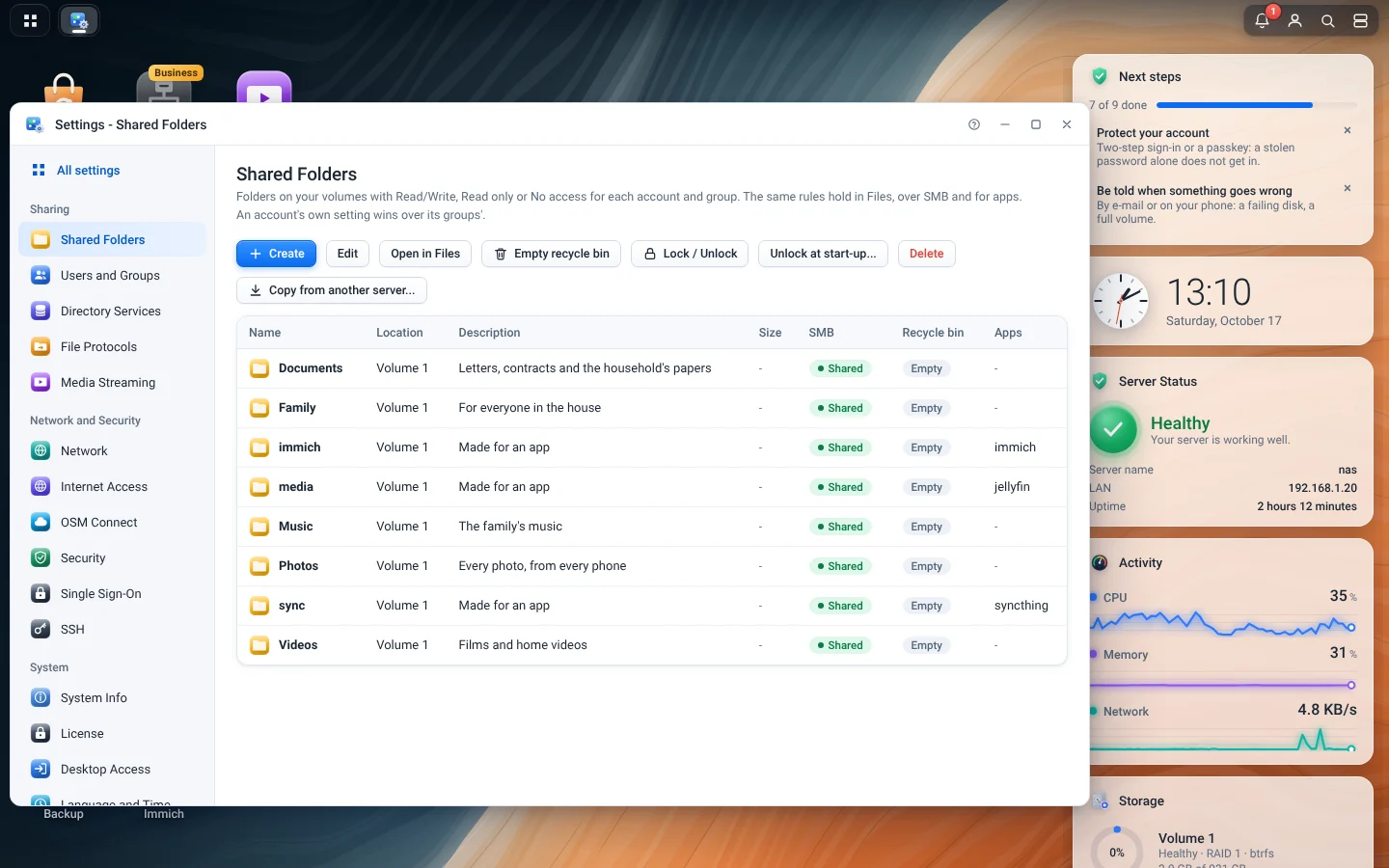
Each folder with its location, size and state.
A new shared folder
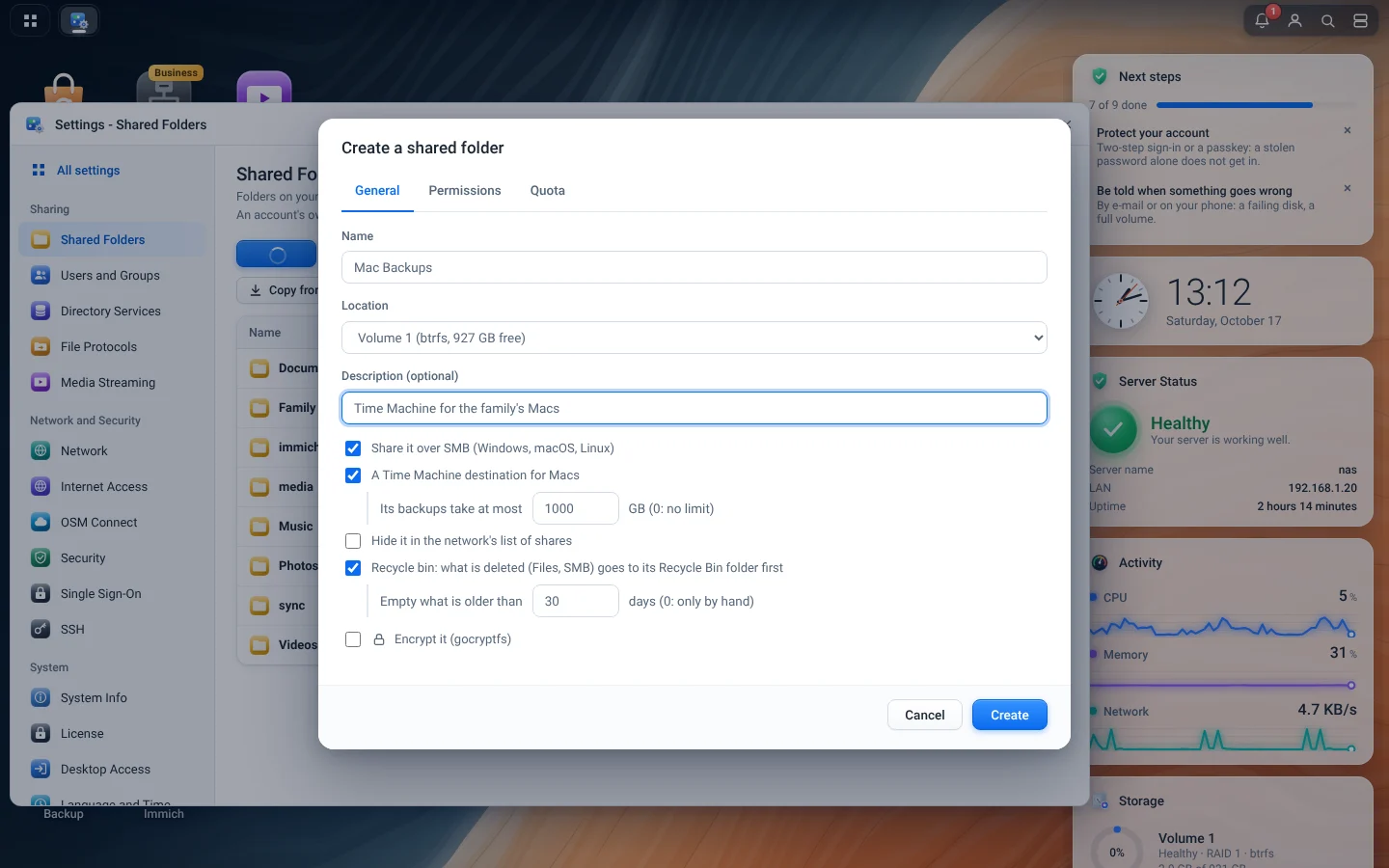
Shared over SMB, a recycle bin, and here a Time Machine destination for the family's Macs.
Users and Groups
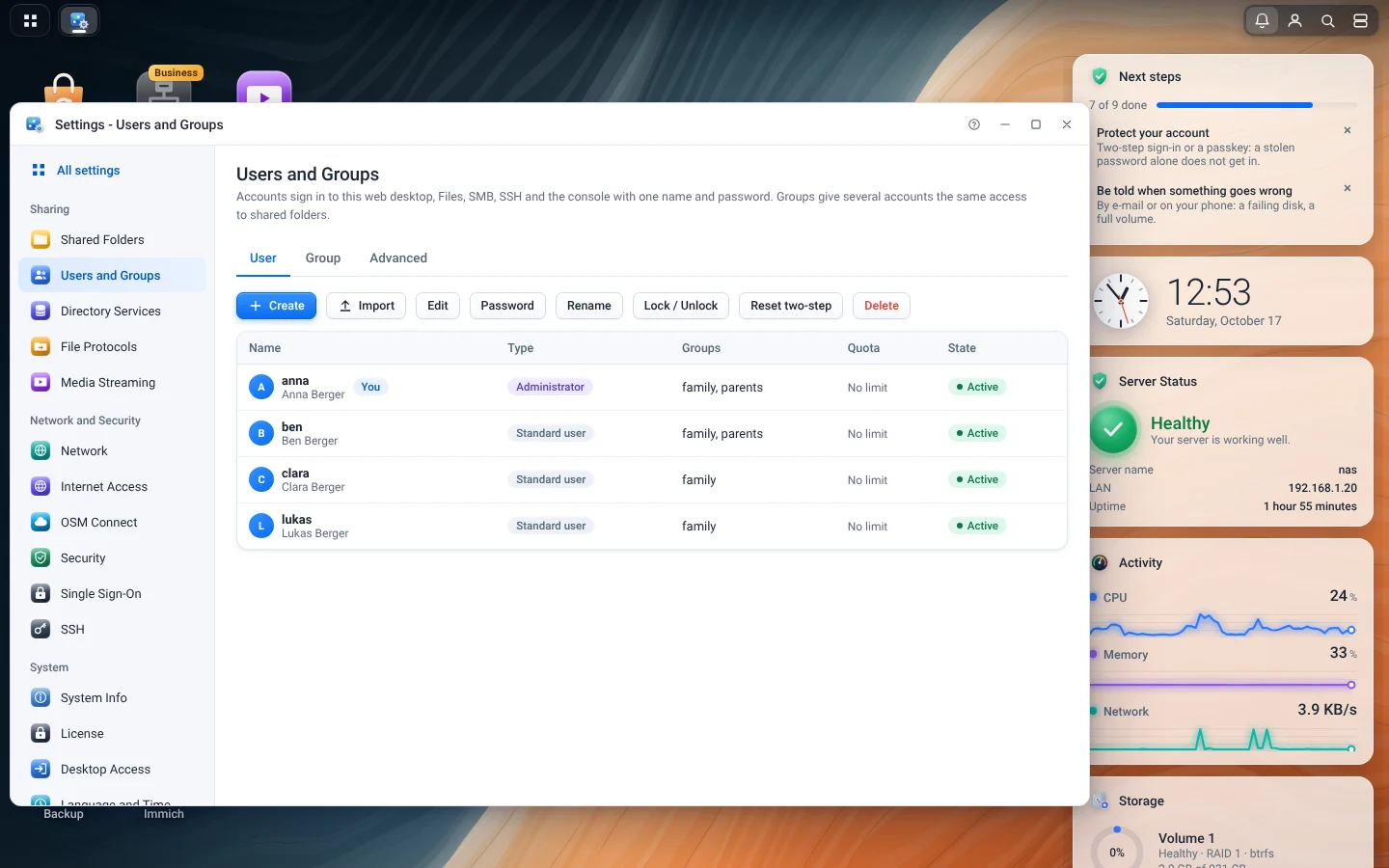
The accounts, their groups and their rights.
File Protocols
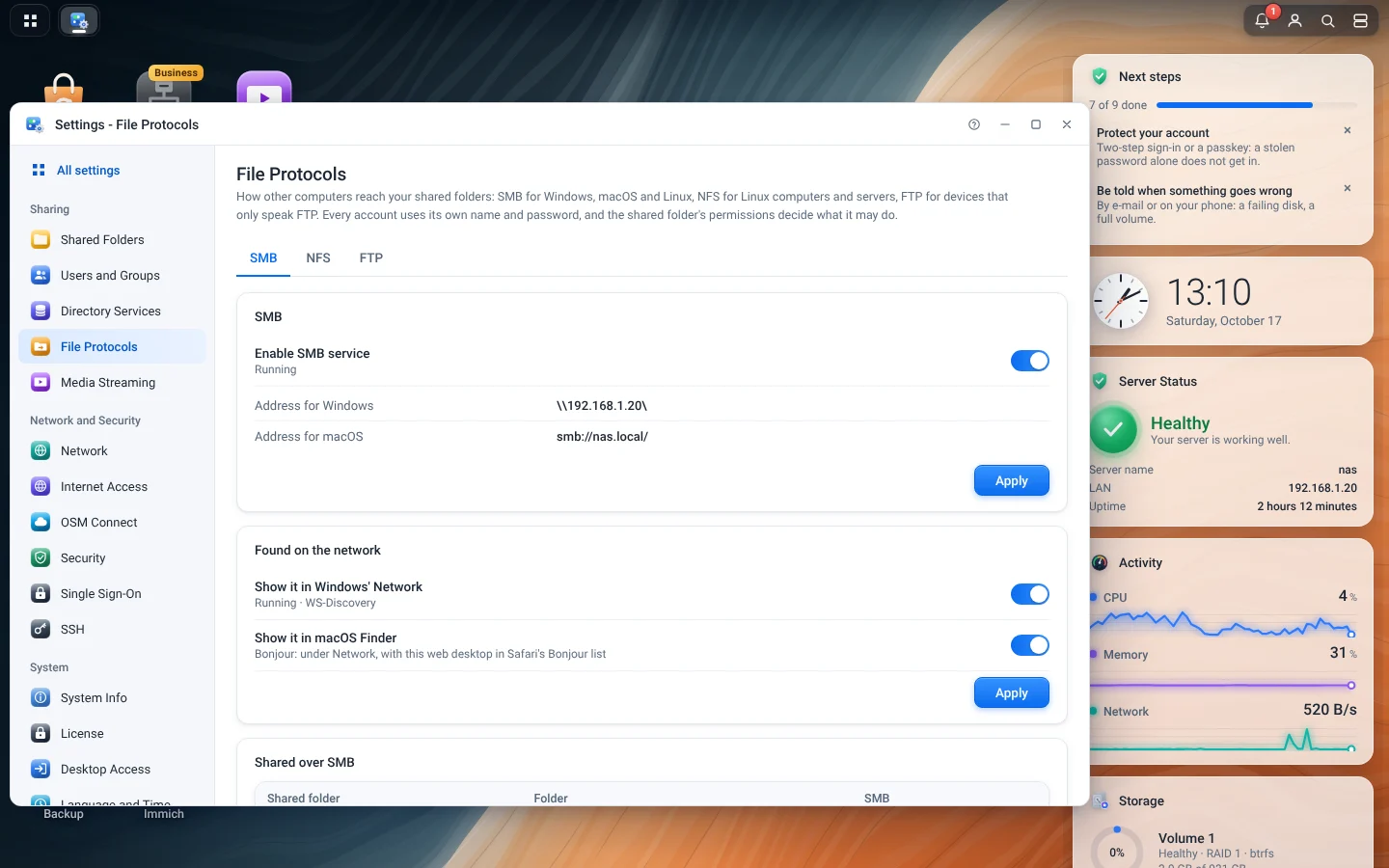
SMB, NFS, FTP and the server in the computers' network lists.
Media Streaming
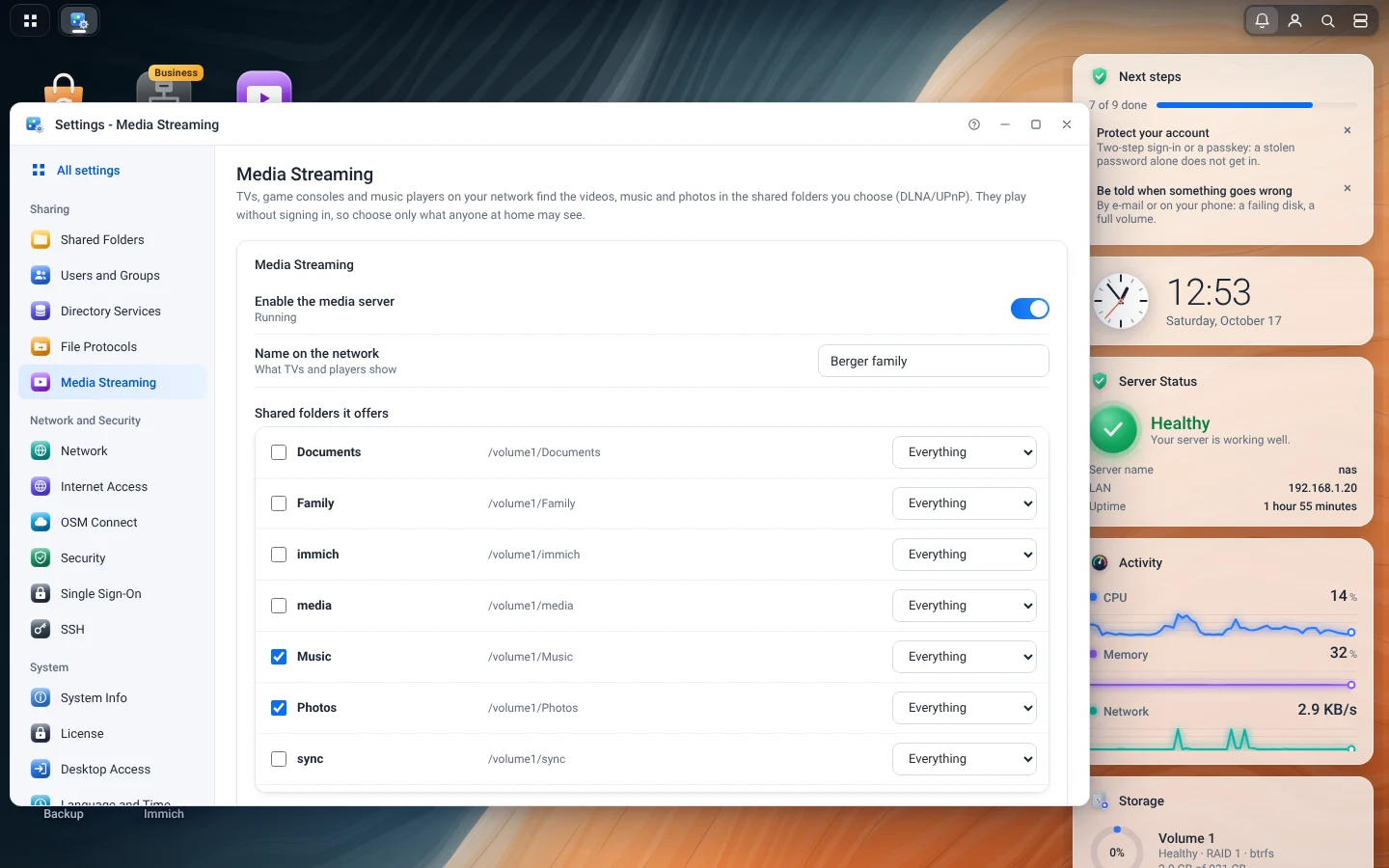
Music, photos and videos for the TVs and players of the house.
Files
Files
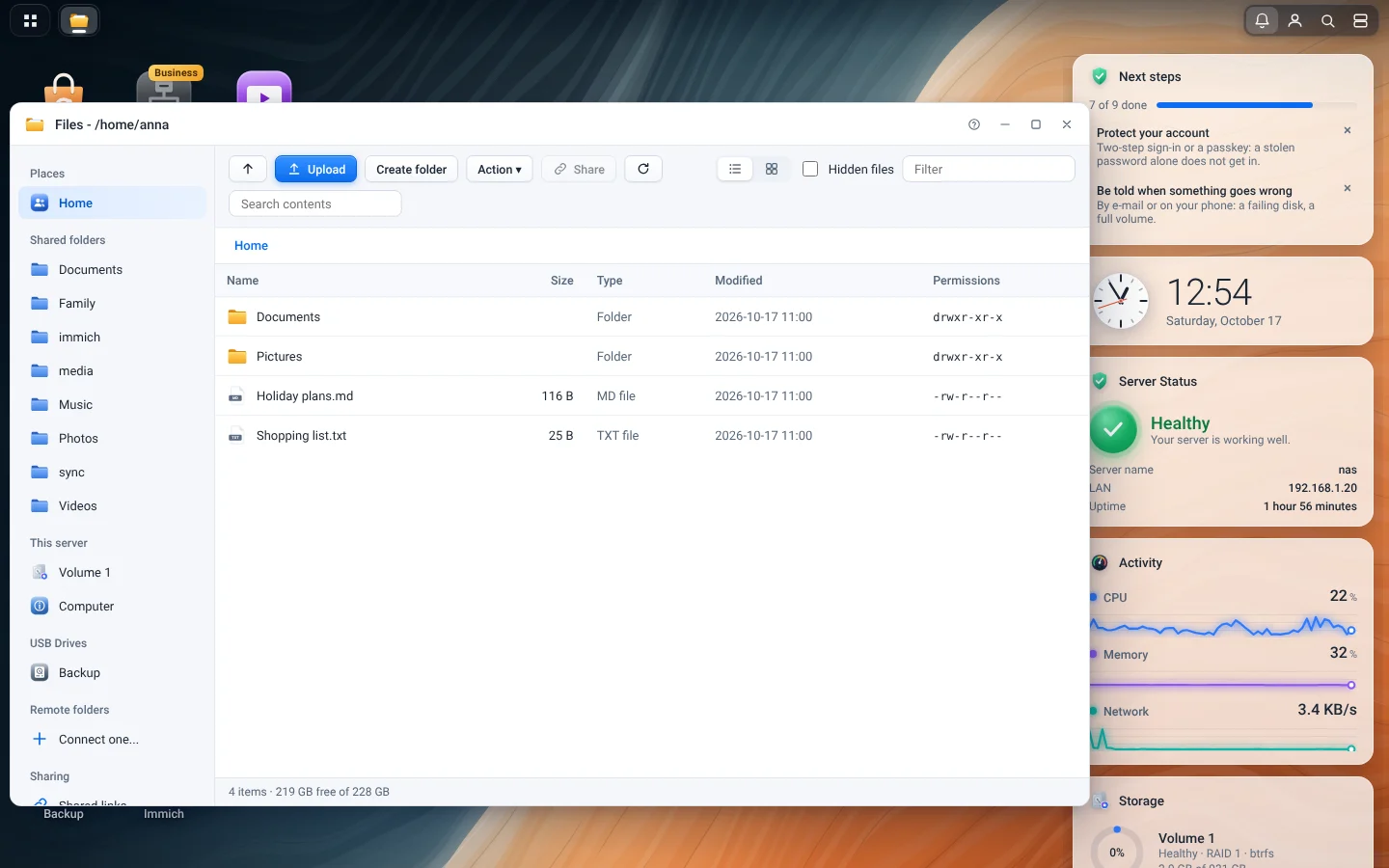
The shared folders and your home folder in the browser: upload, share links, earlier versions.
Apps and virtual machines
App Catalog
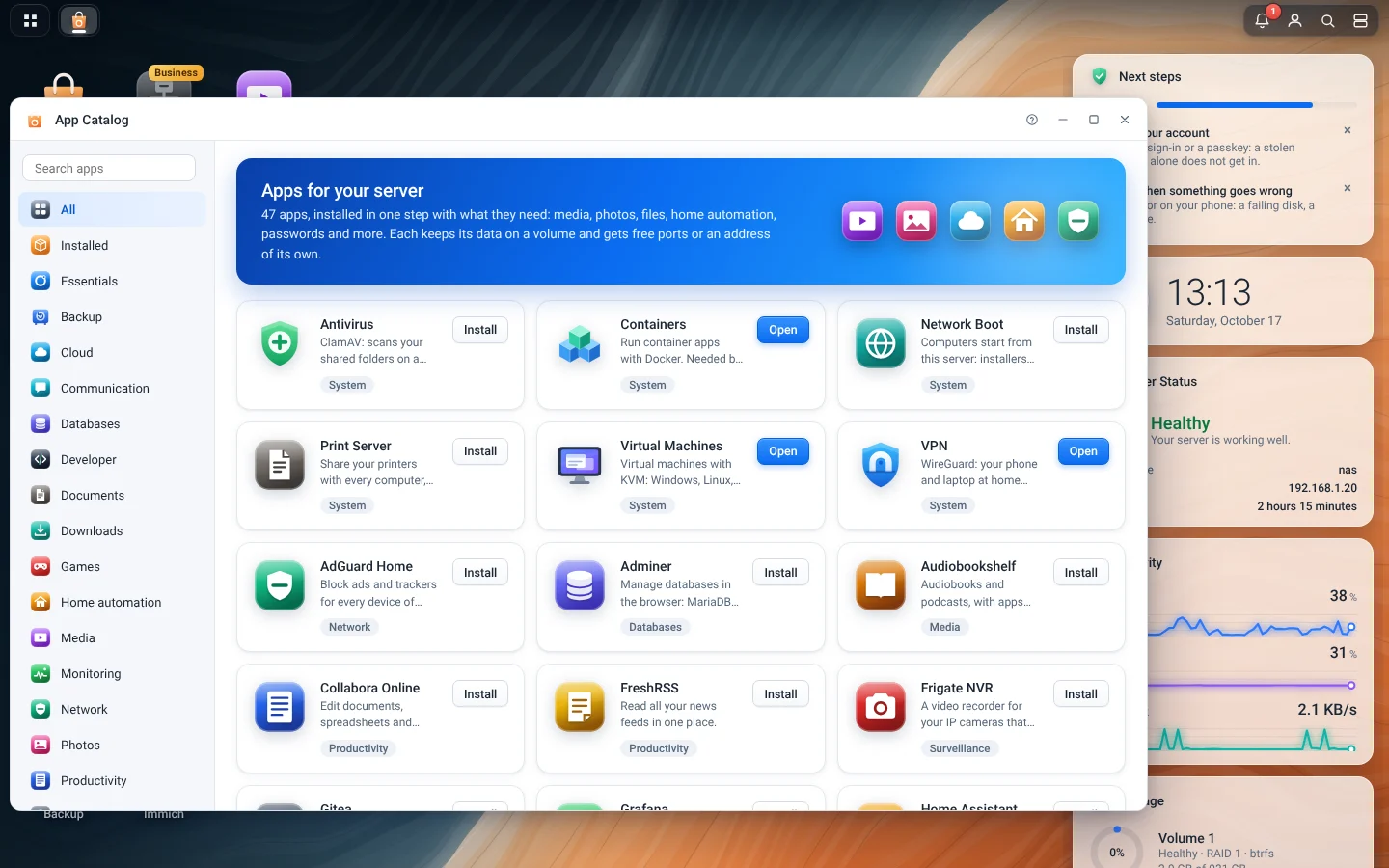
More than 40 apps that install ready to use; about half of them open already signed in.
An app's page
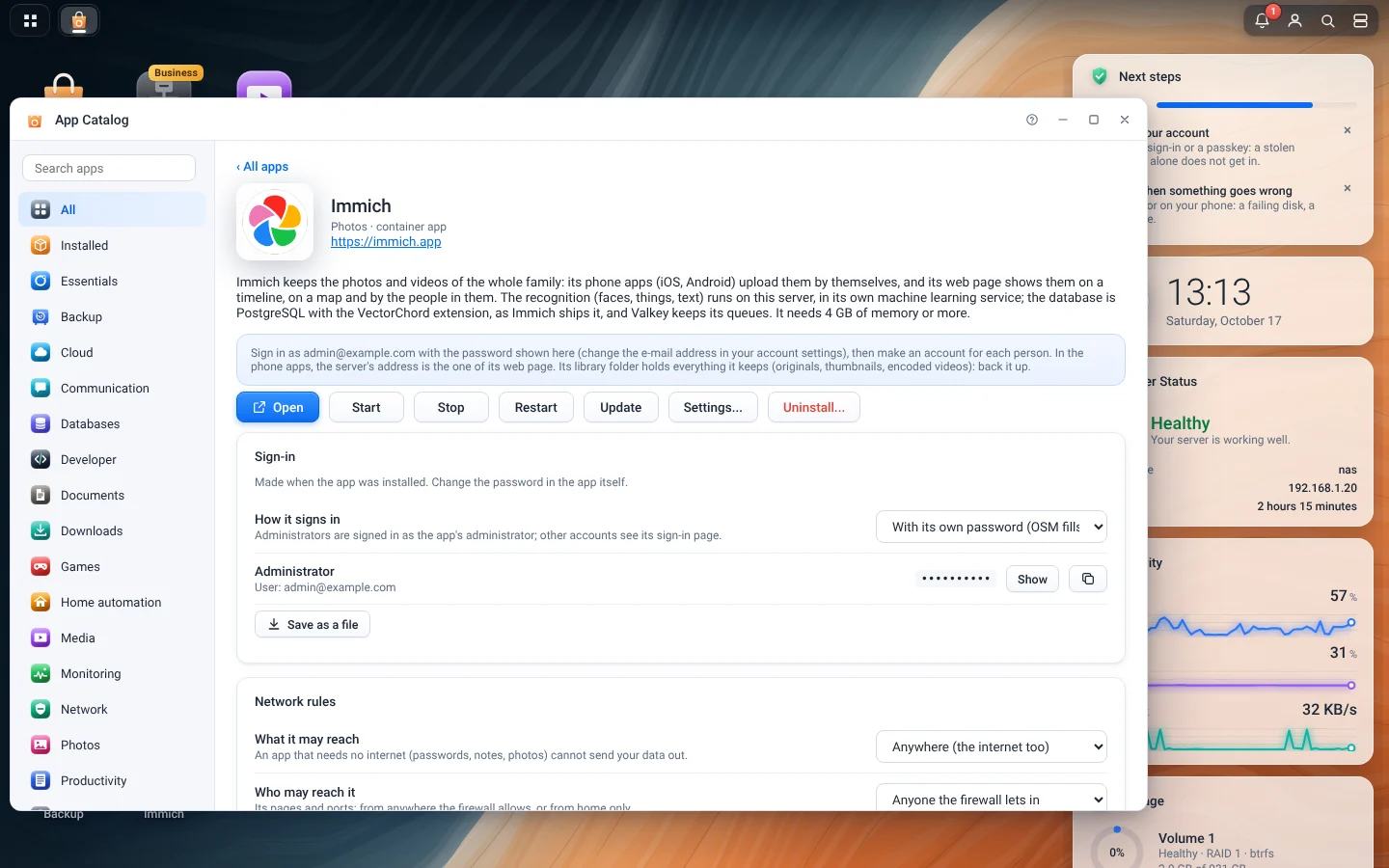
What it does, its address and ports, its settings and its updates.
Containers
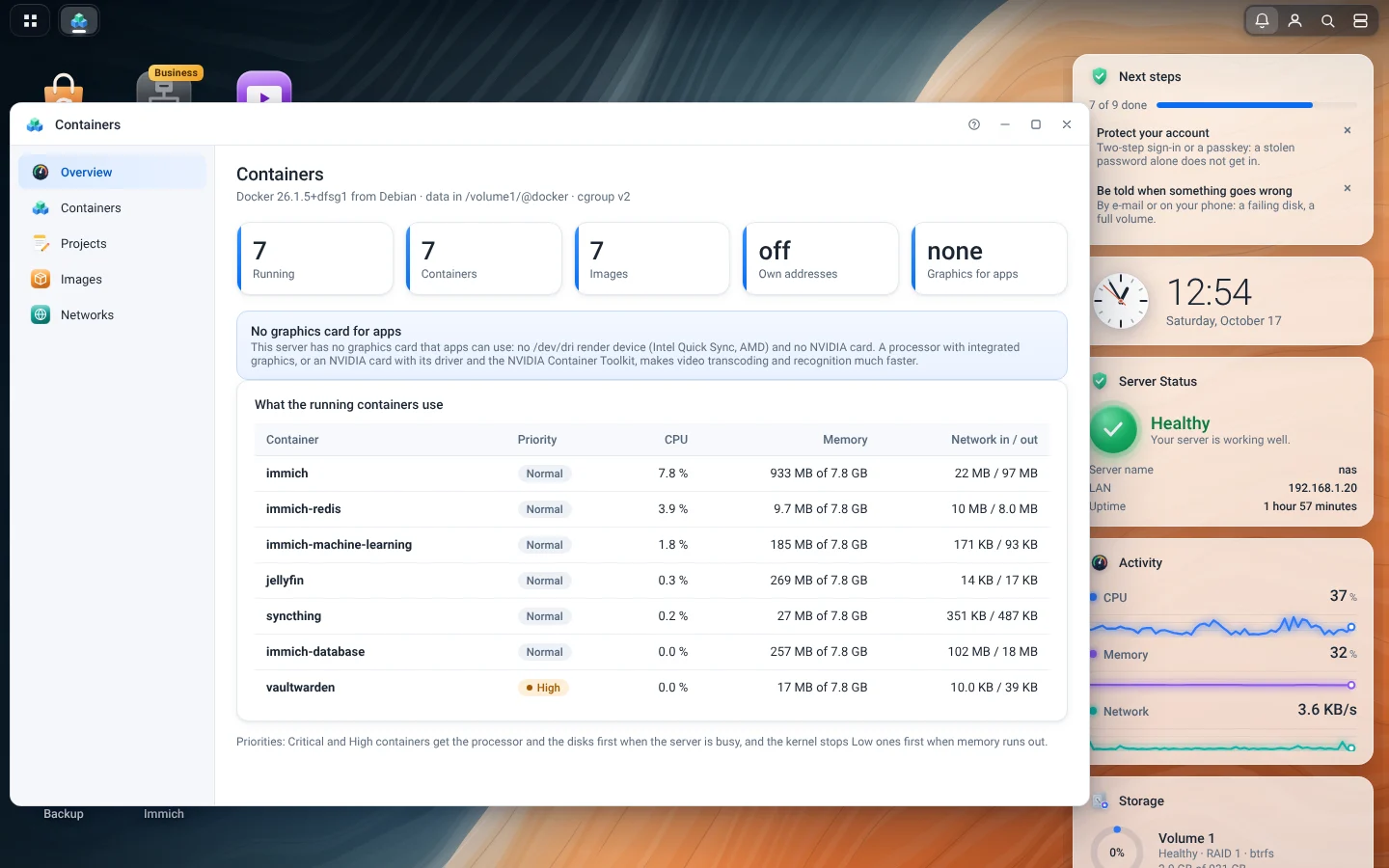
Every container, its resources, its log and a shell.
Virtual Machines
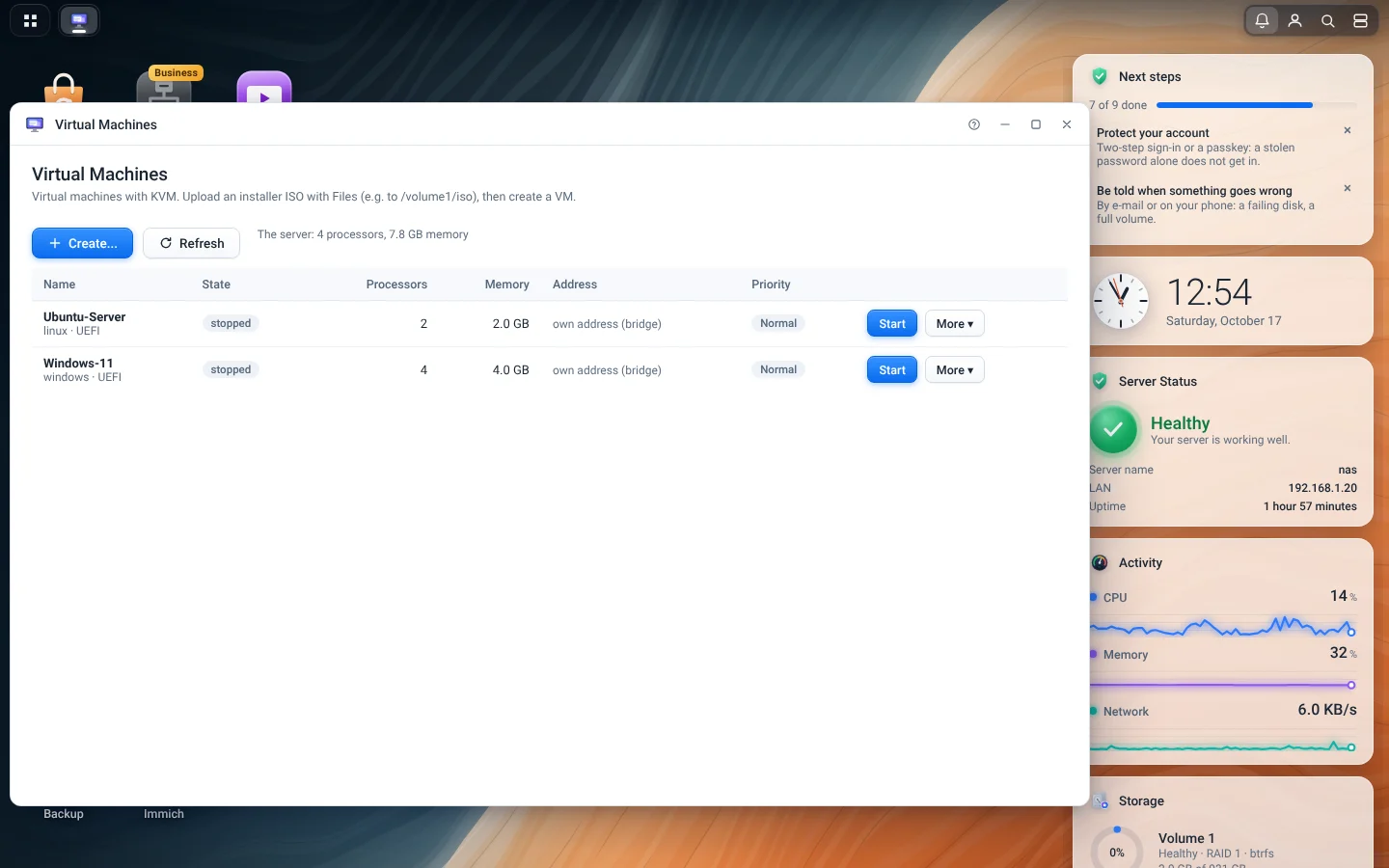
Virtual machines with their screen in the browser.
Backup
Backup
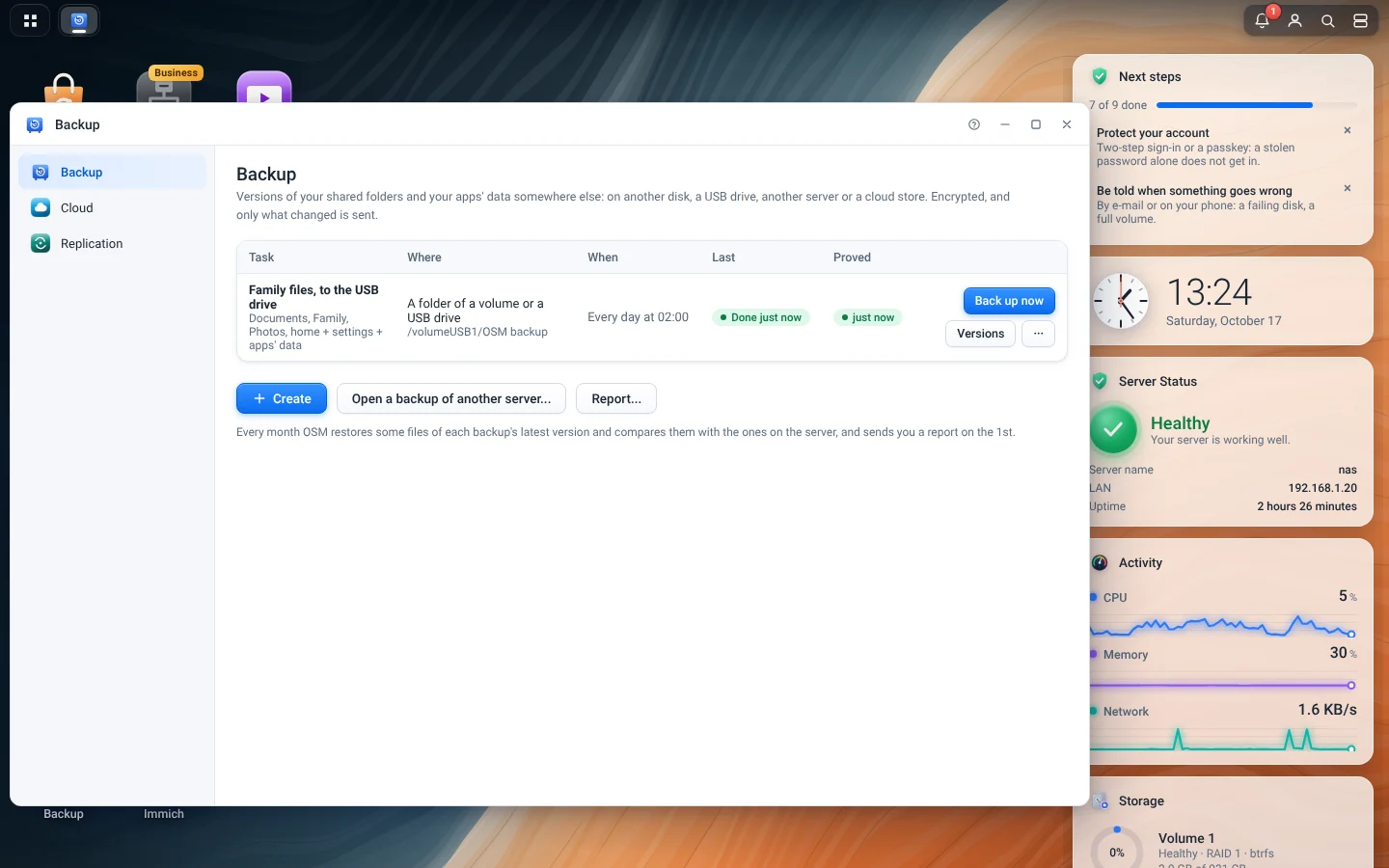
Each task, where it goes, its last run and whether its last test restore passed.
A new backup task
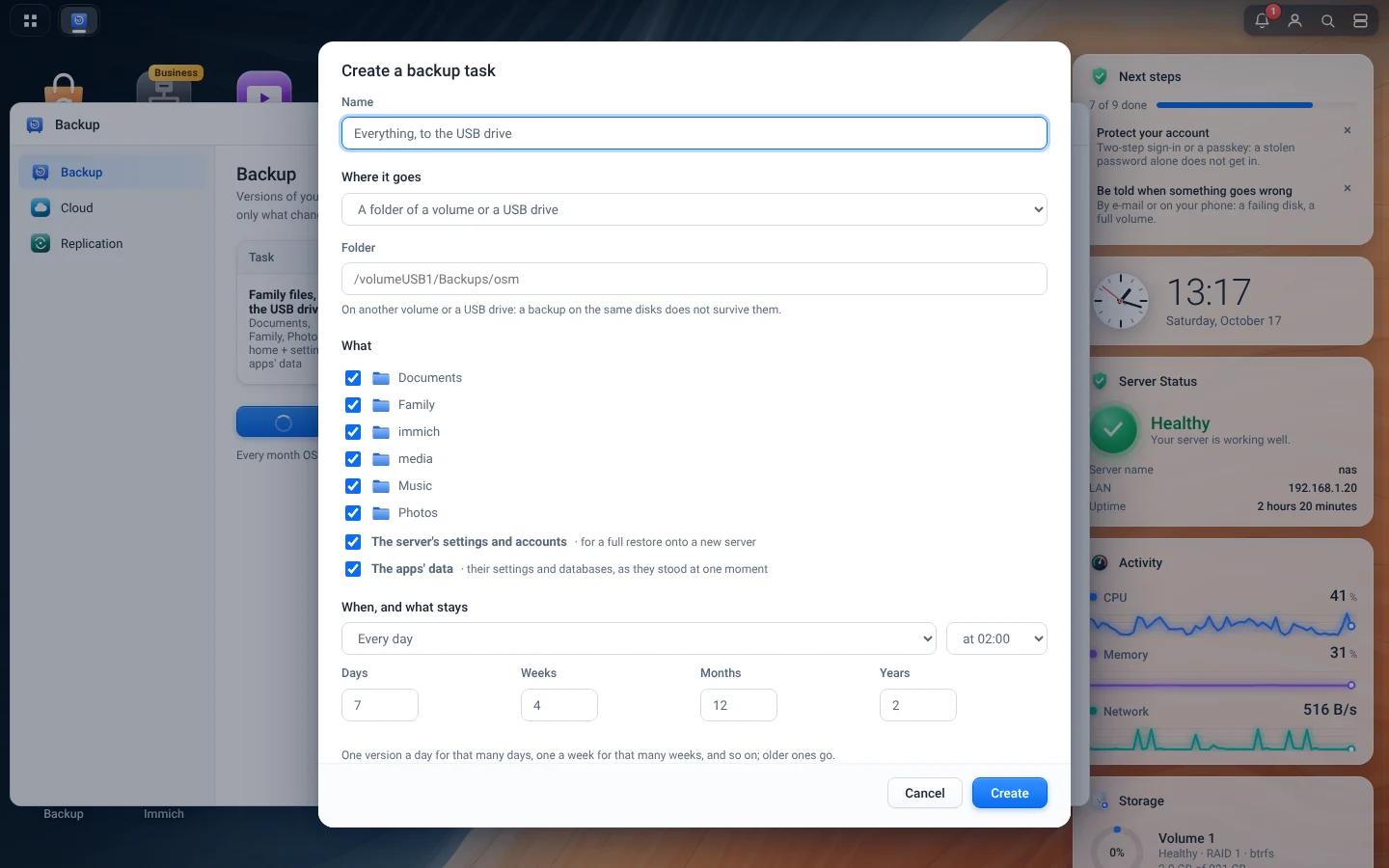
Shared folders, home folders, the settings and accounts, and the apps' data, encrypted.
Cloud
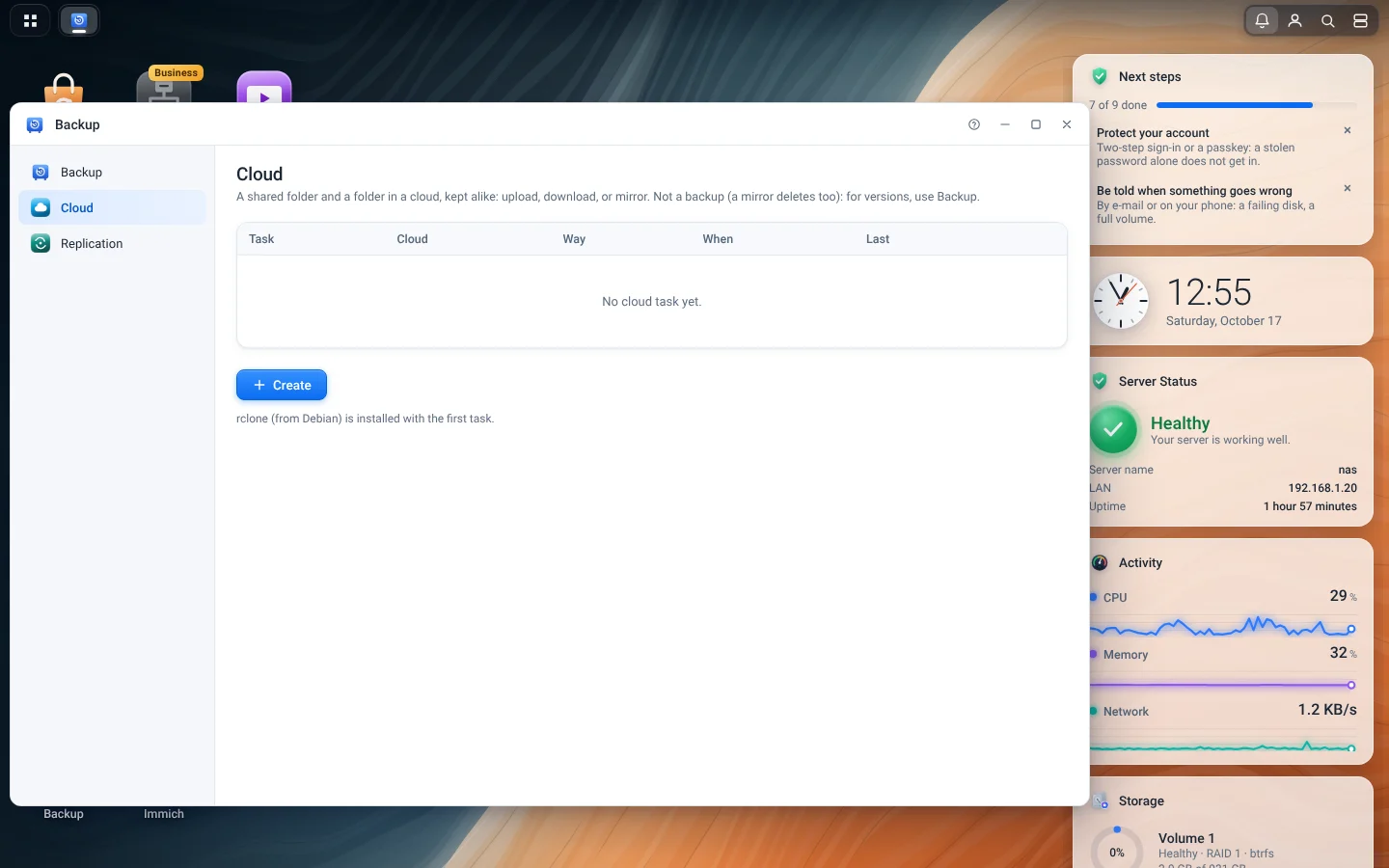
A shared folder kept alike with a folder in a cloud.
Replication
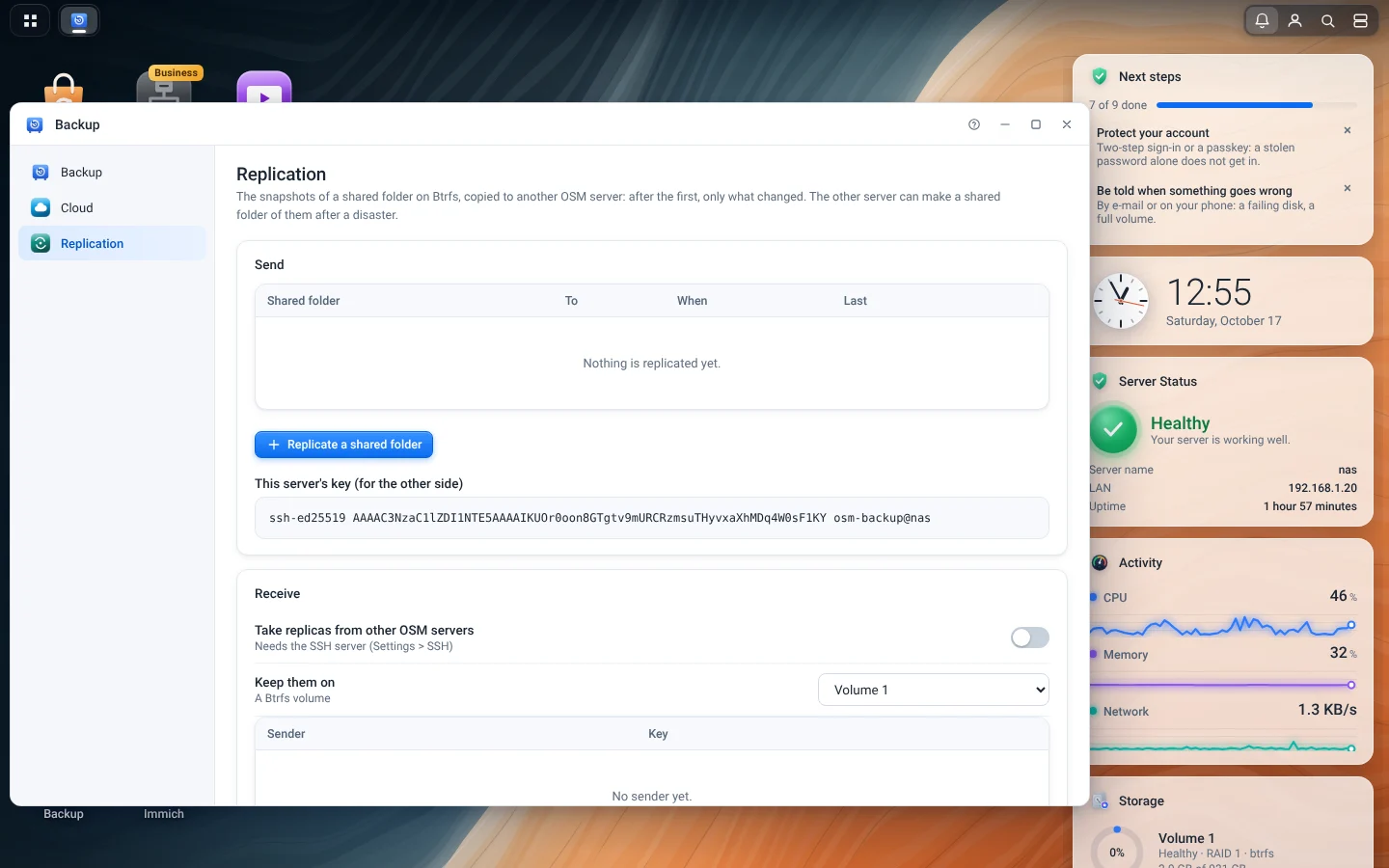
Snapshots copied to another OSM server.
Network and security
Network
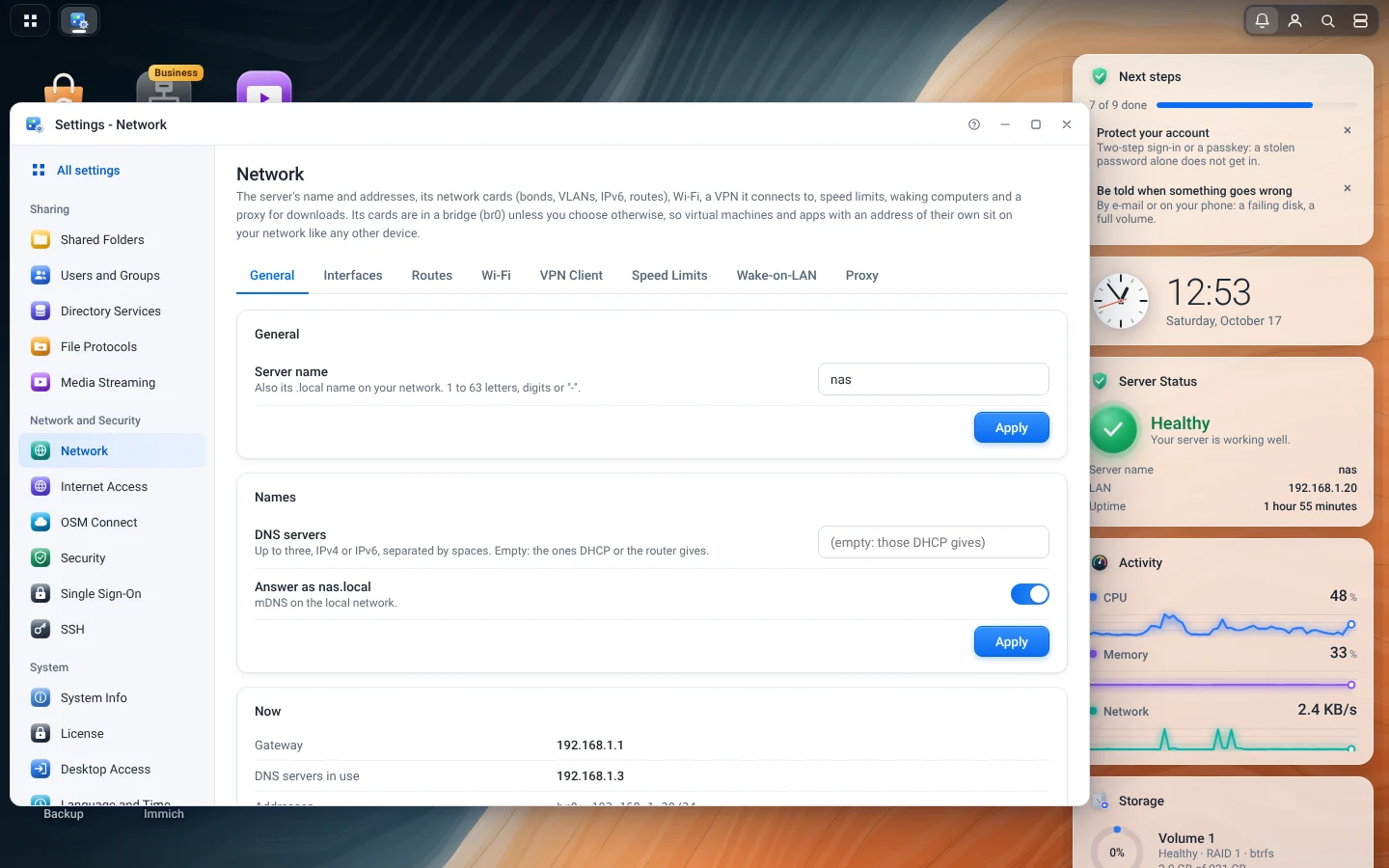
The server's name, its DNS servers, and the range of addresses for apps of their own.
Internet Access
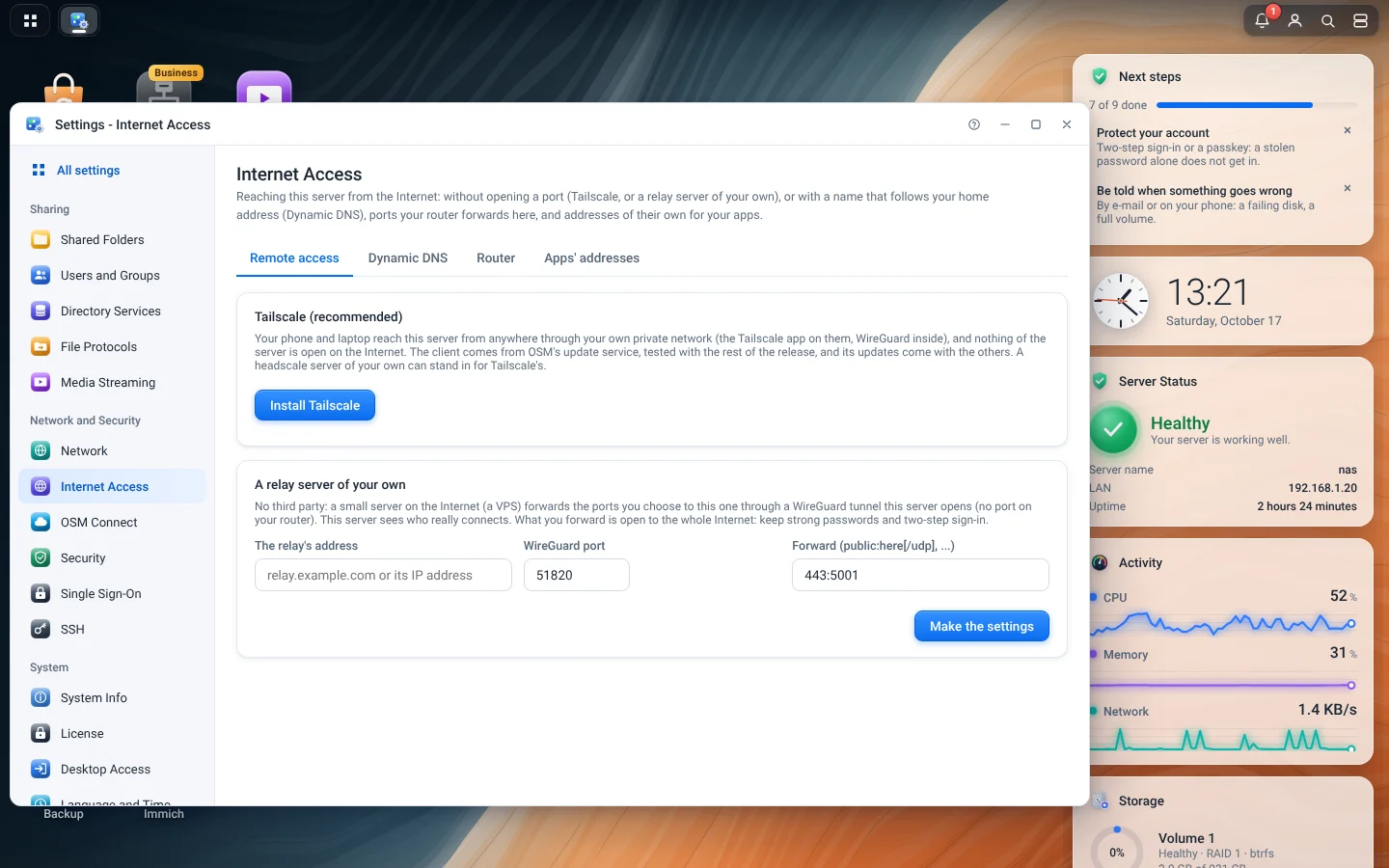
Remote access without opening a port, Dynamic DNS, the router, and the apps' addresses.
Firewall
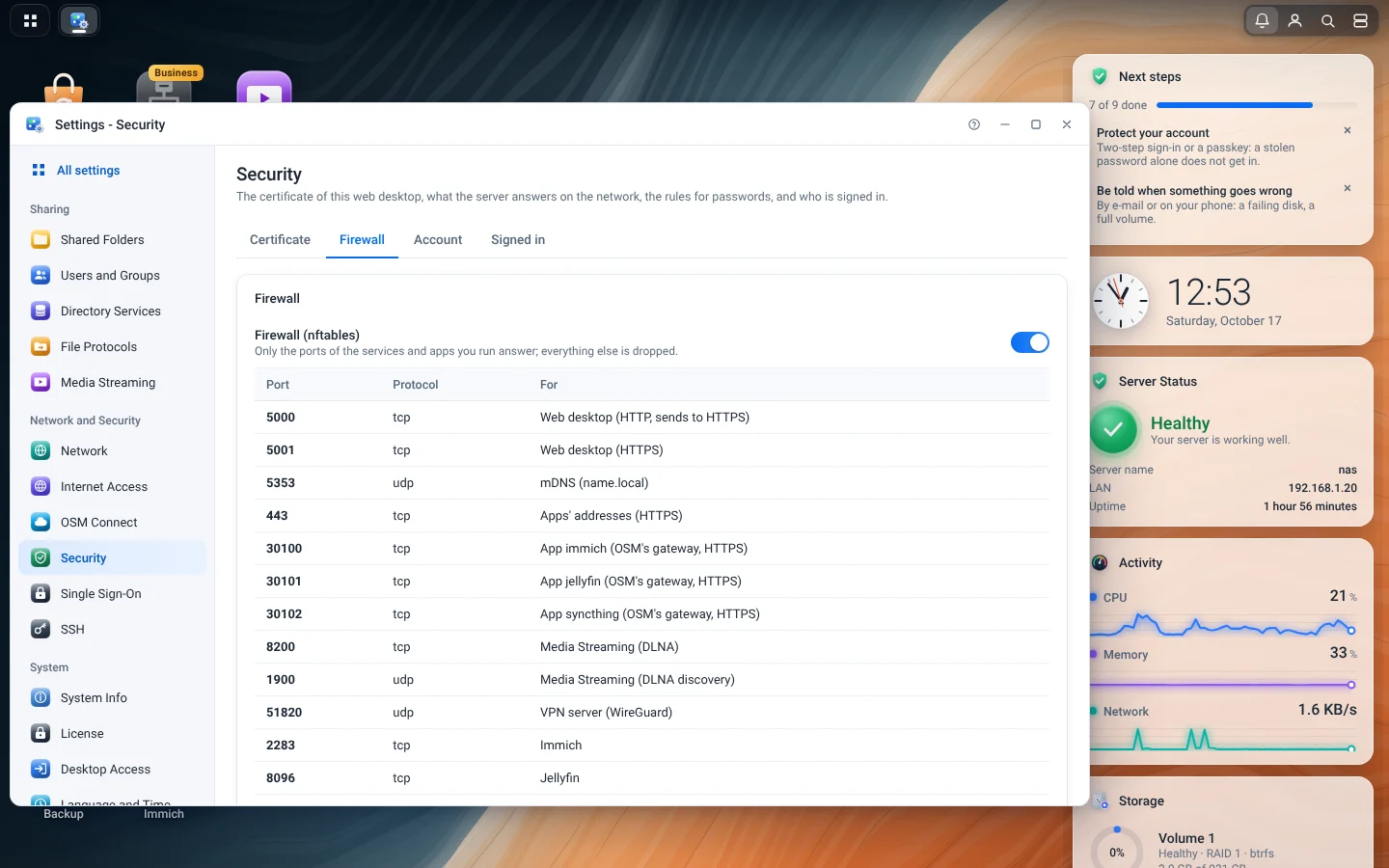
On by default, open only for what runs. Apps with an address of their own have network rules instead.
Security Check
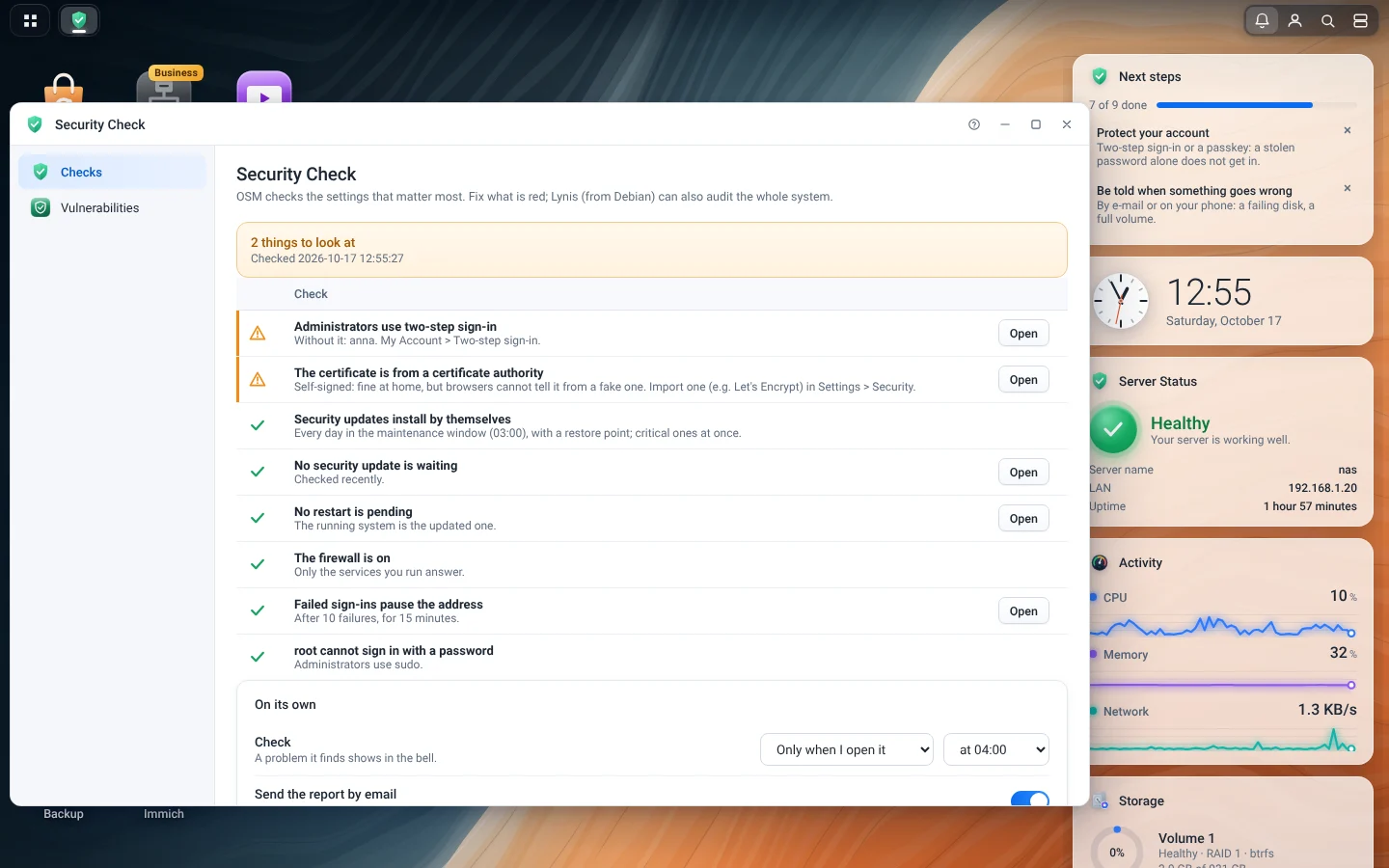
The settings that matter most, with a fix for those OSM can change itself.
VPN
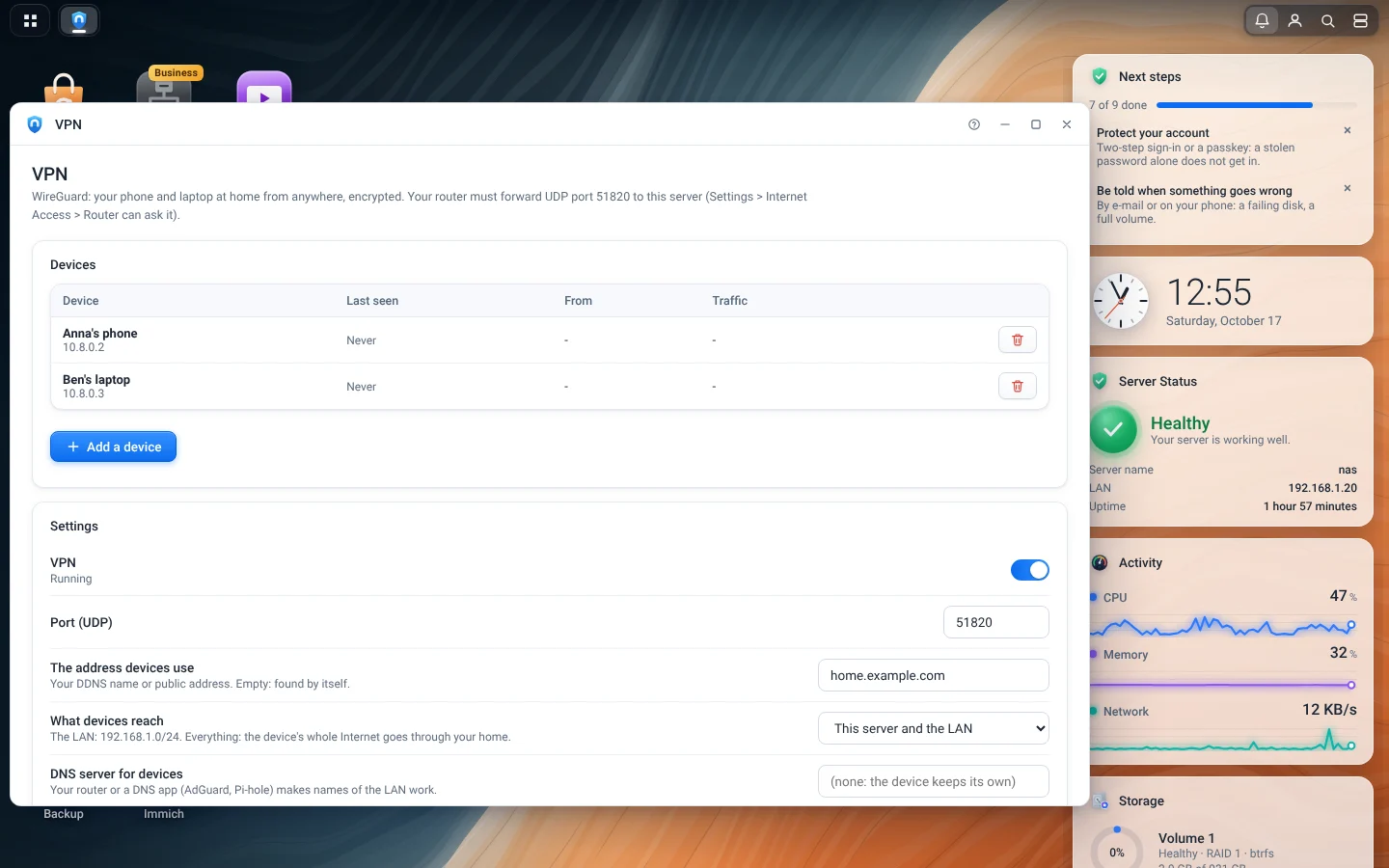
A WireGuard server for phones and laptops, with a QR code for each.
System
Updates and Recovery
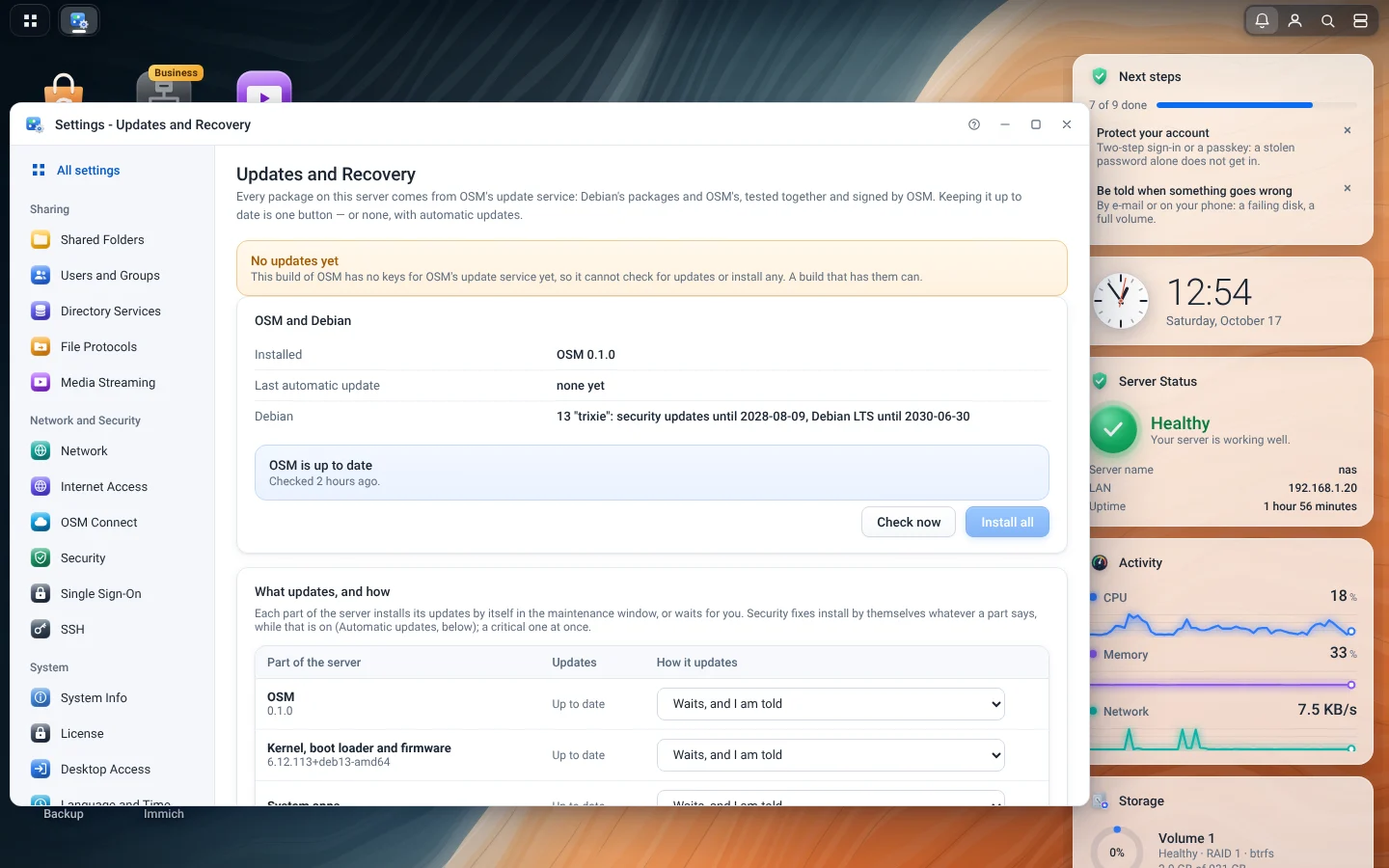
Updates from OSM's update service, each part's choice, restore points and the update history.
Power and Hardware
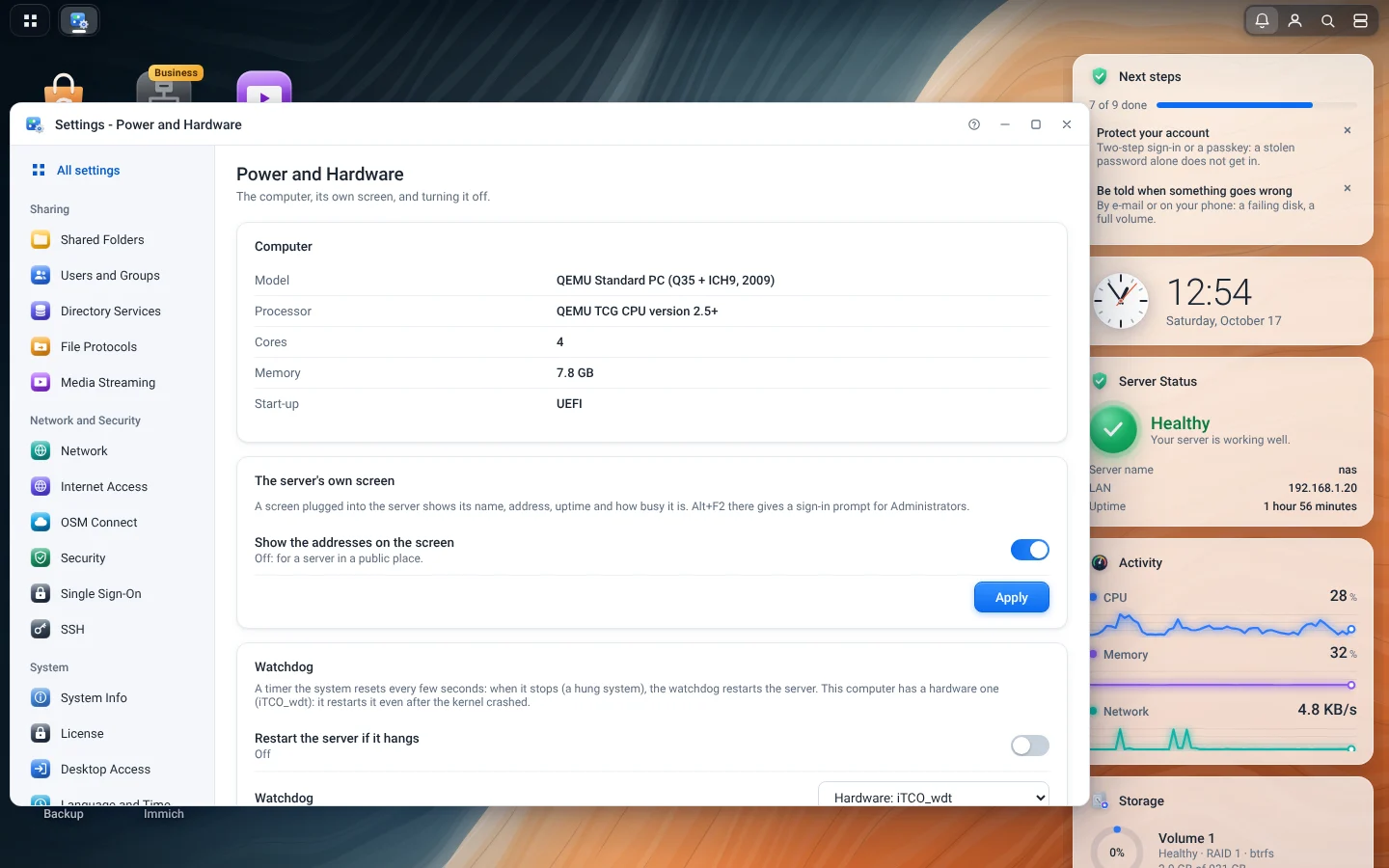
Power profiles, the UPS, the watchdog and the server's screen.
System Info
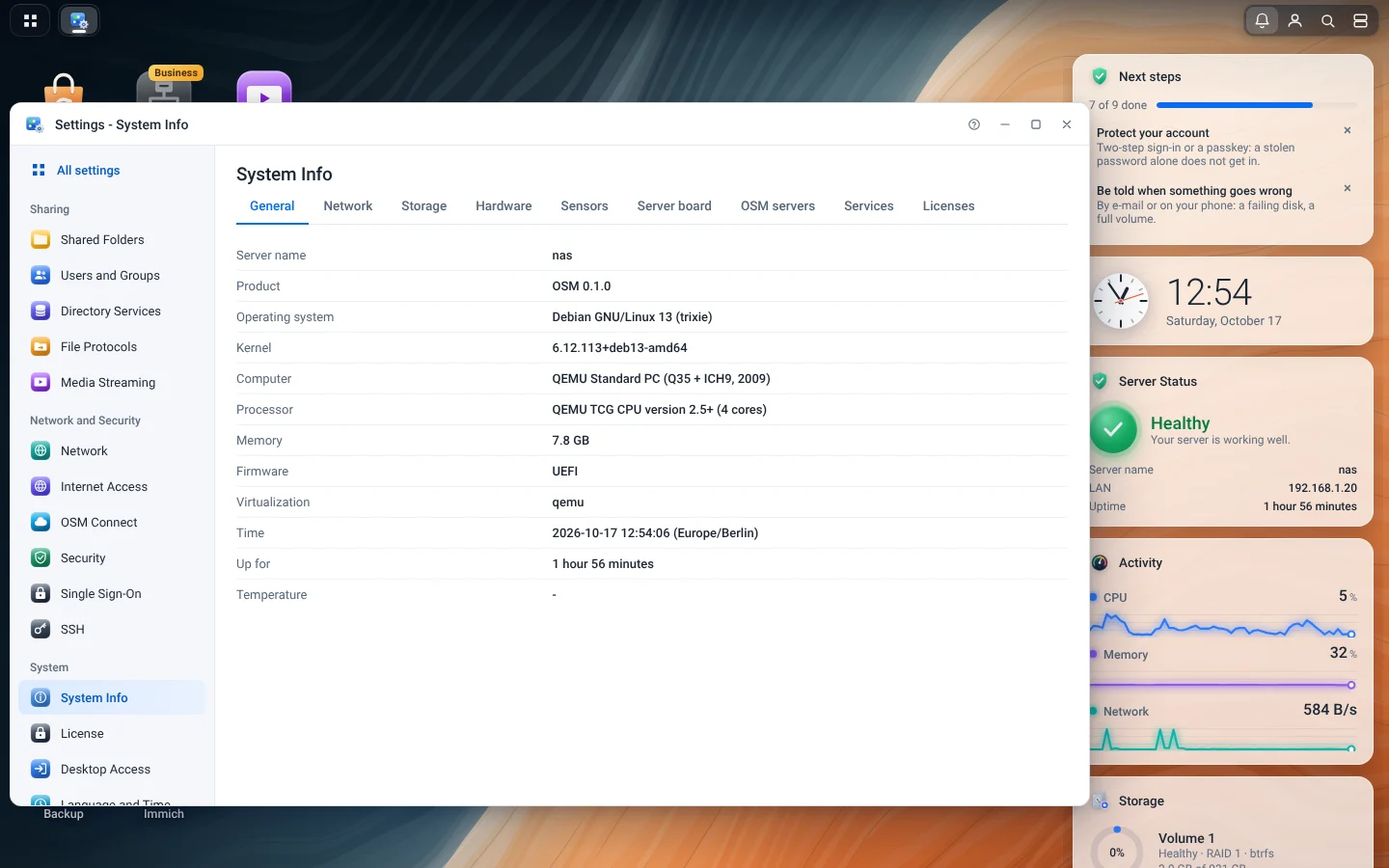
The computer, its devices, sensors and licenses.
Scheduled Tasks
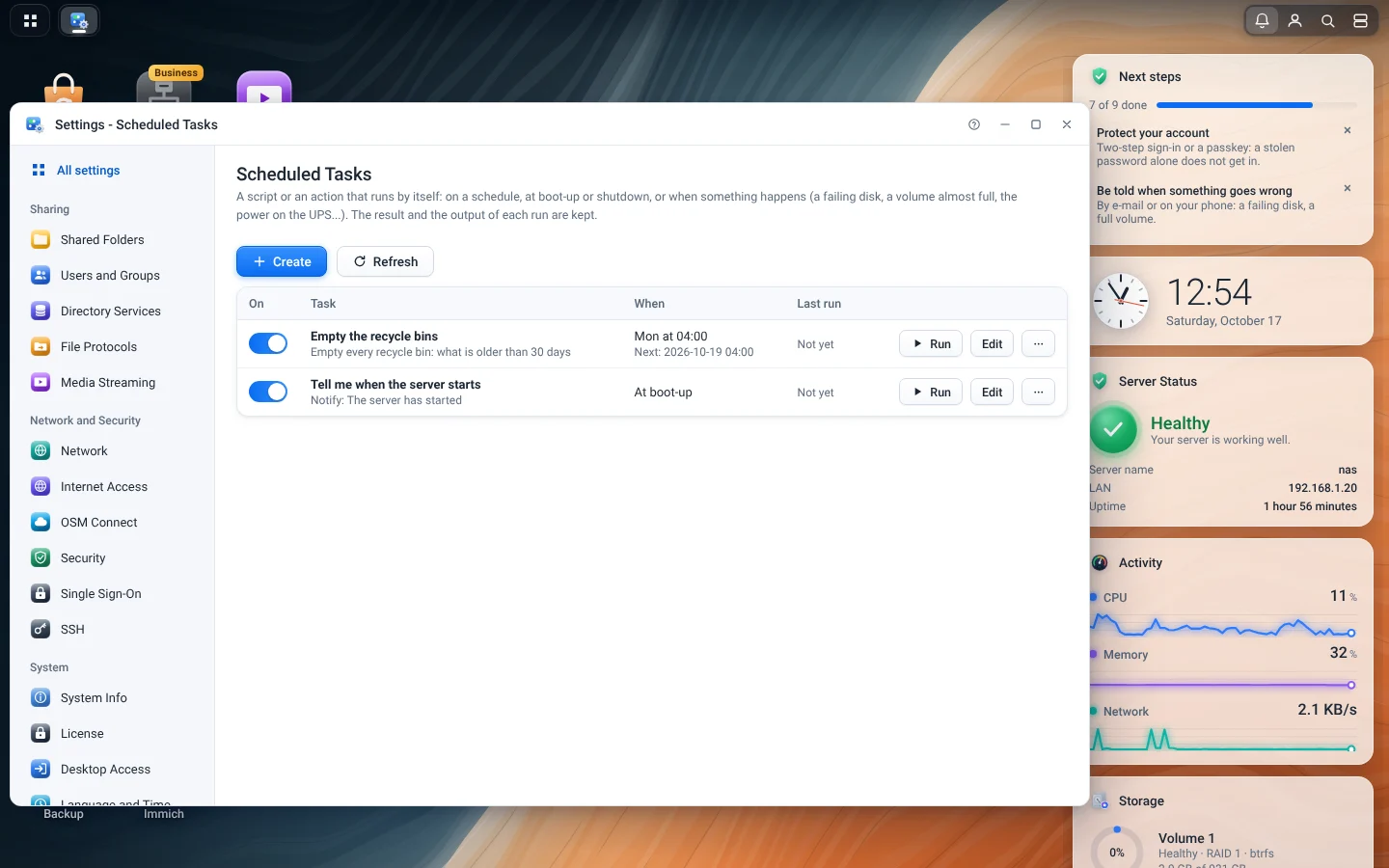
Scripts and actions on a schedule, or when something happens.
Activity
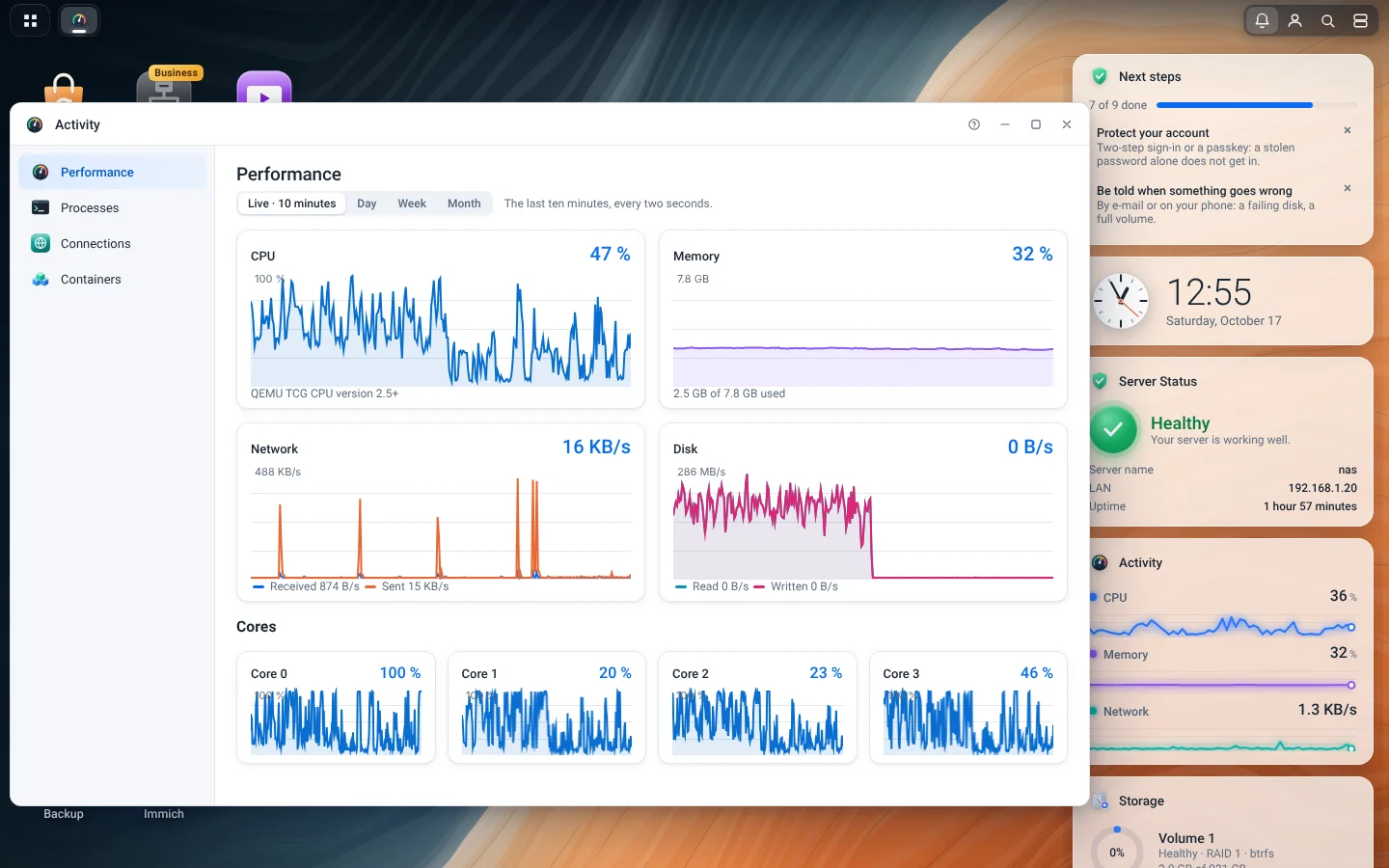
Processor, memory, disks and network, live and over time.
Logs
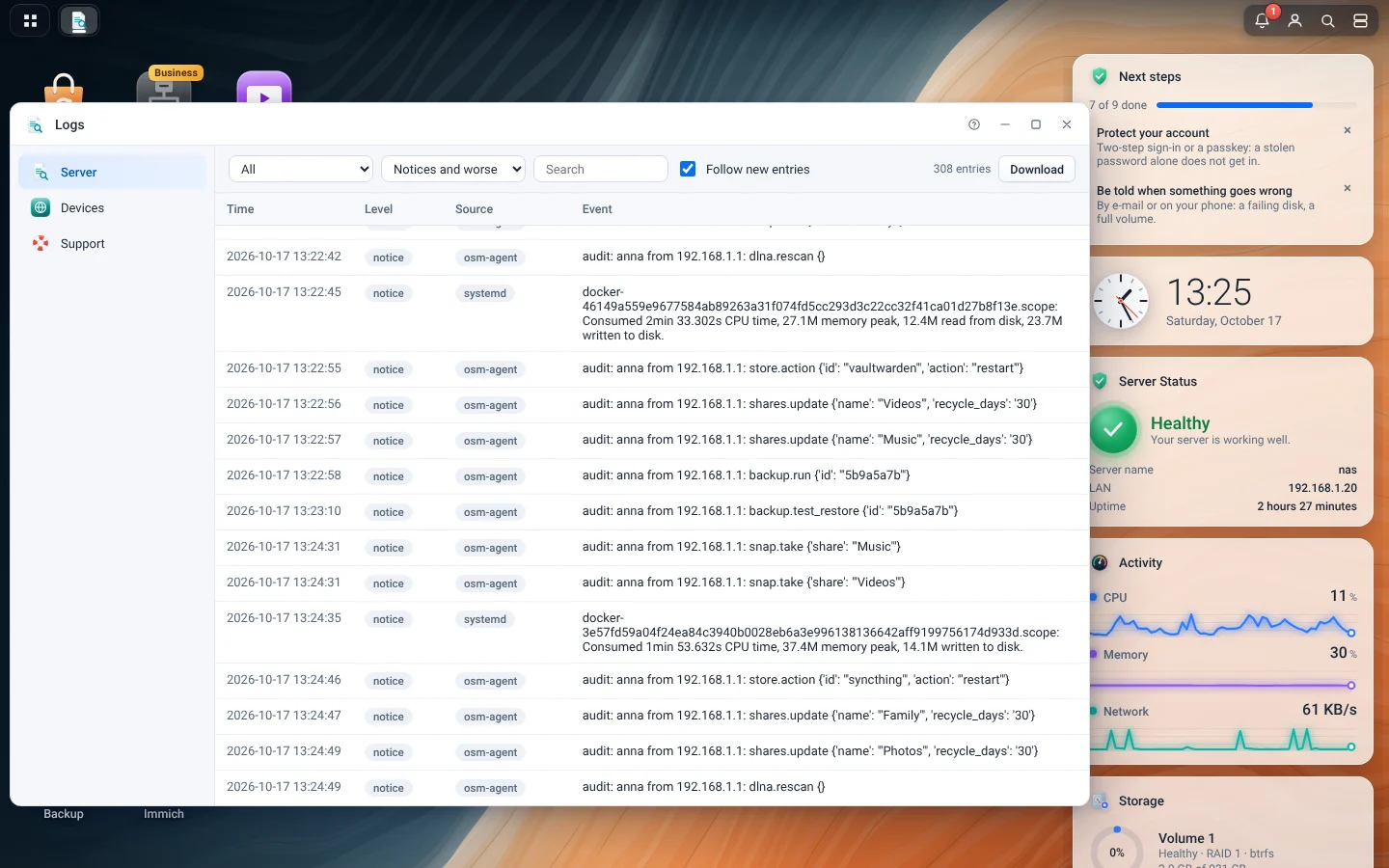
The system journal by source and level, and what Administrators did.
Servers
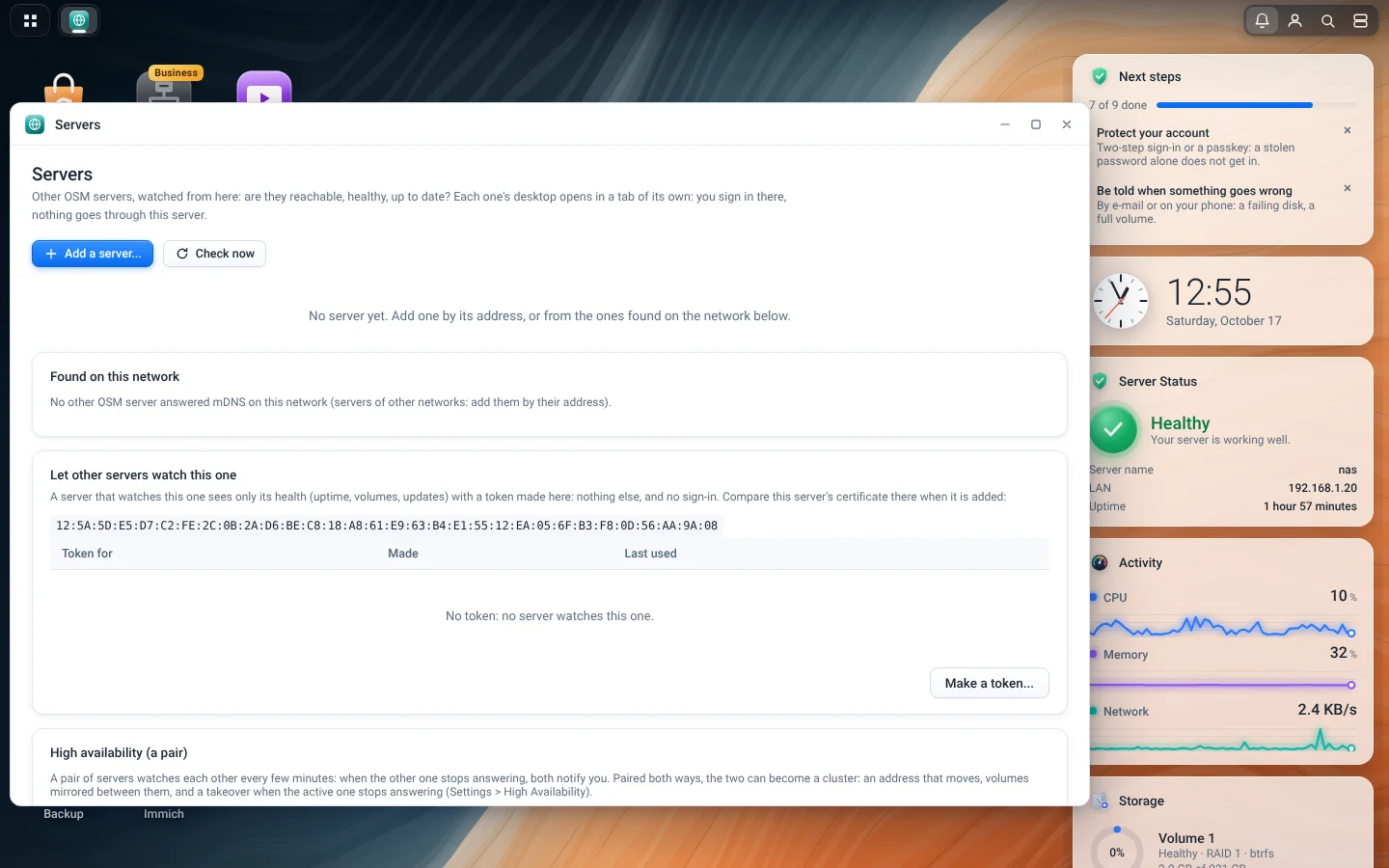
Your other OSM servers, their health at a glance.
Help
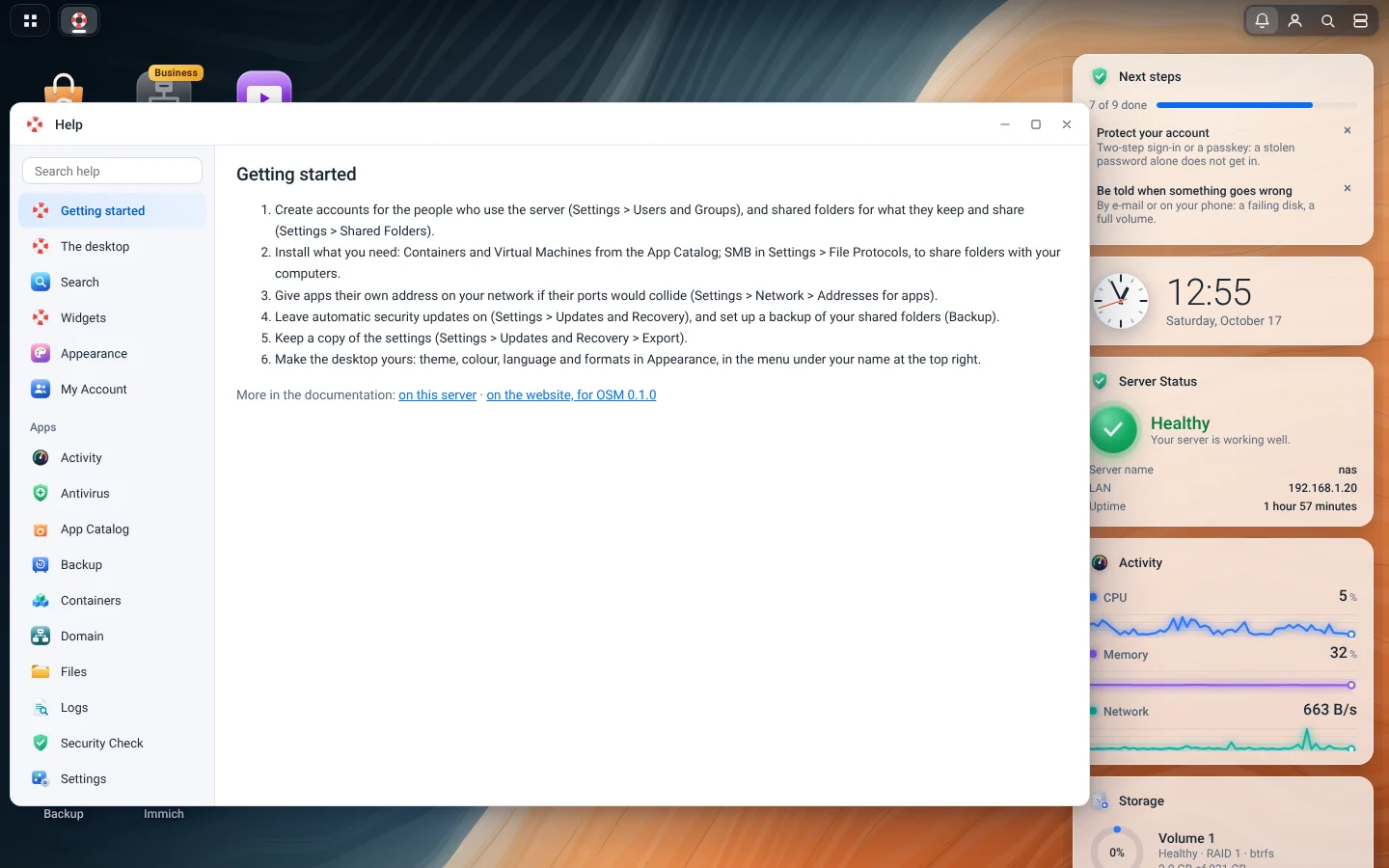
Every topic; most windows open theirs with their ? button.
The server's own screen
Its status
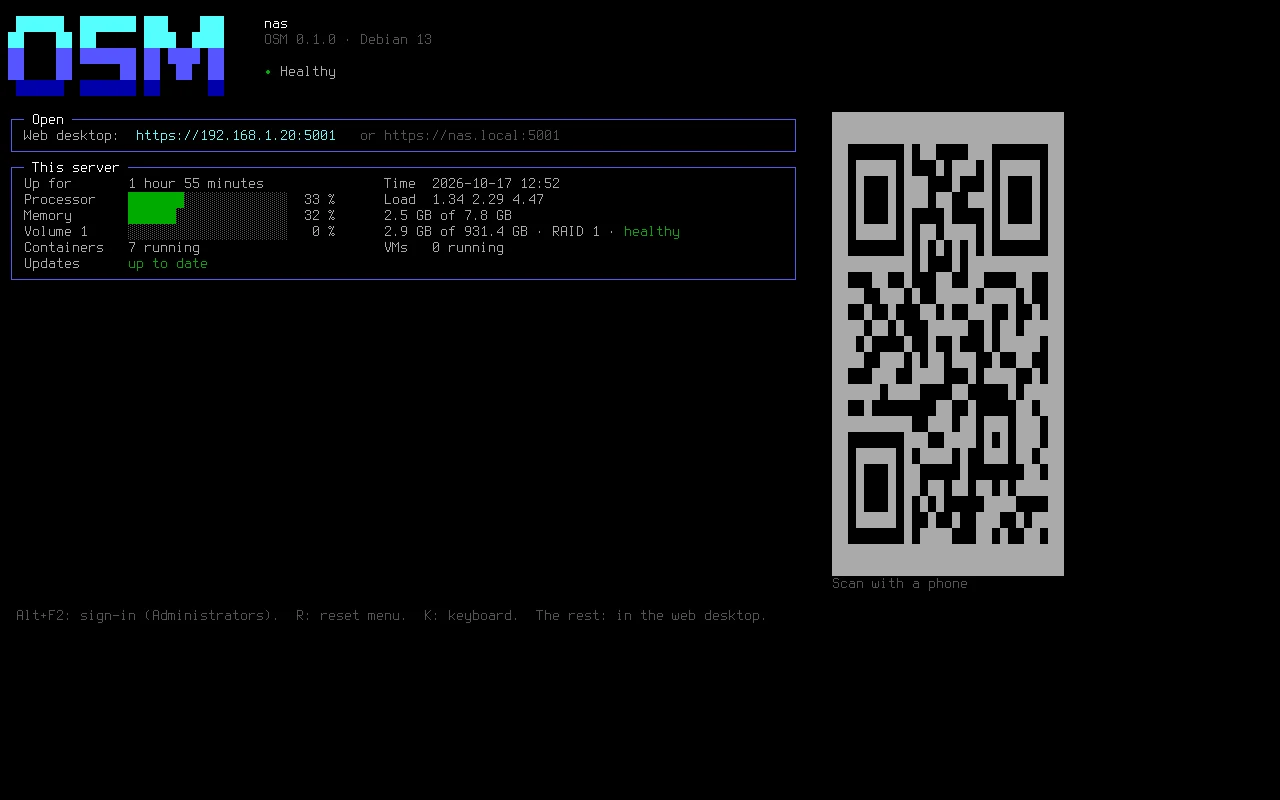
The address, the server's health and its volumes, on the screen plugged into it.
Installing
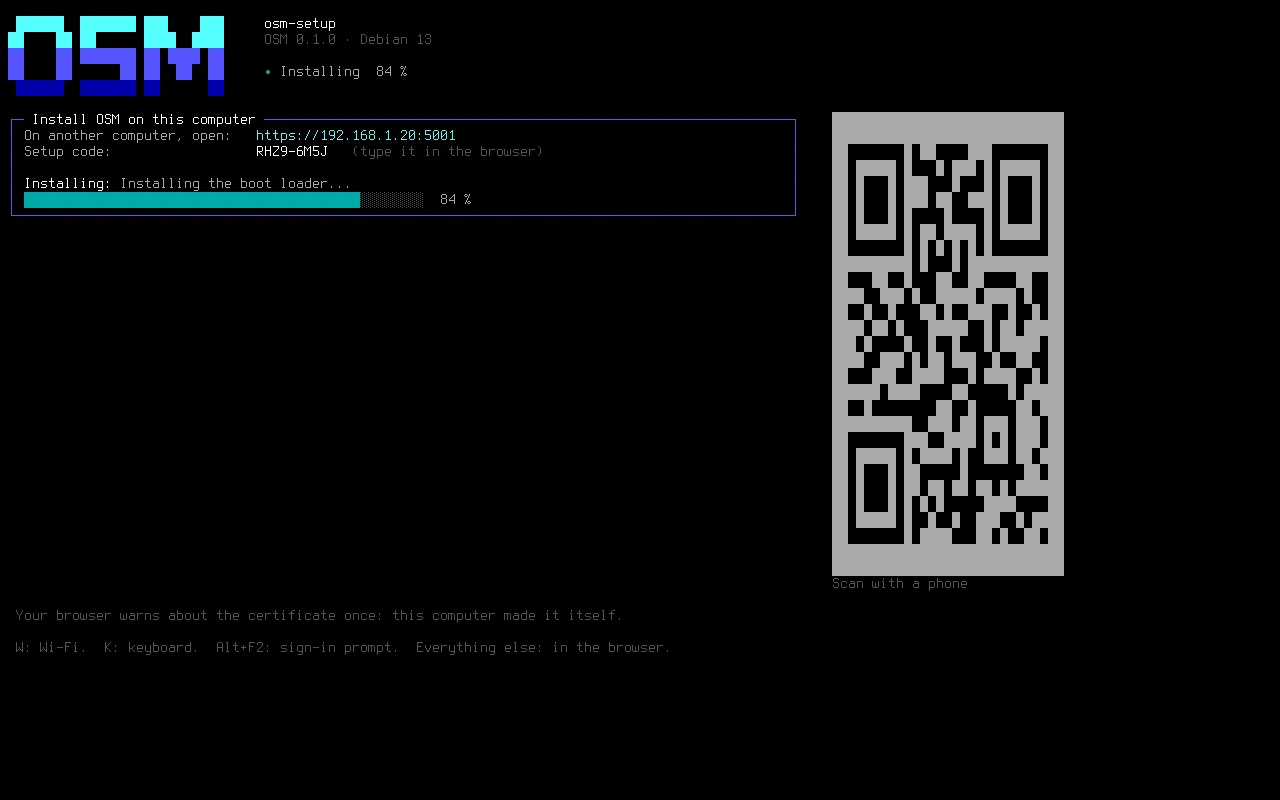
The installer's progress, on the server too.